Step-by-Step Guide to Optimizing Your BizTapID Site: Setting Up SEO, Meta Tags, and Google Analytics
7 mins read · Updated 01 Oct, 2025
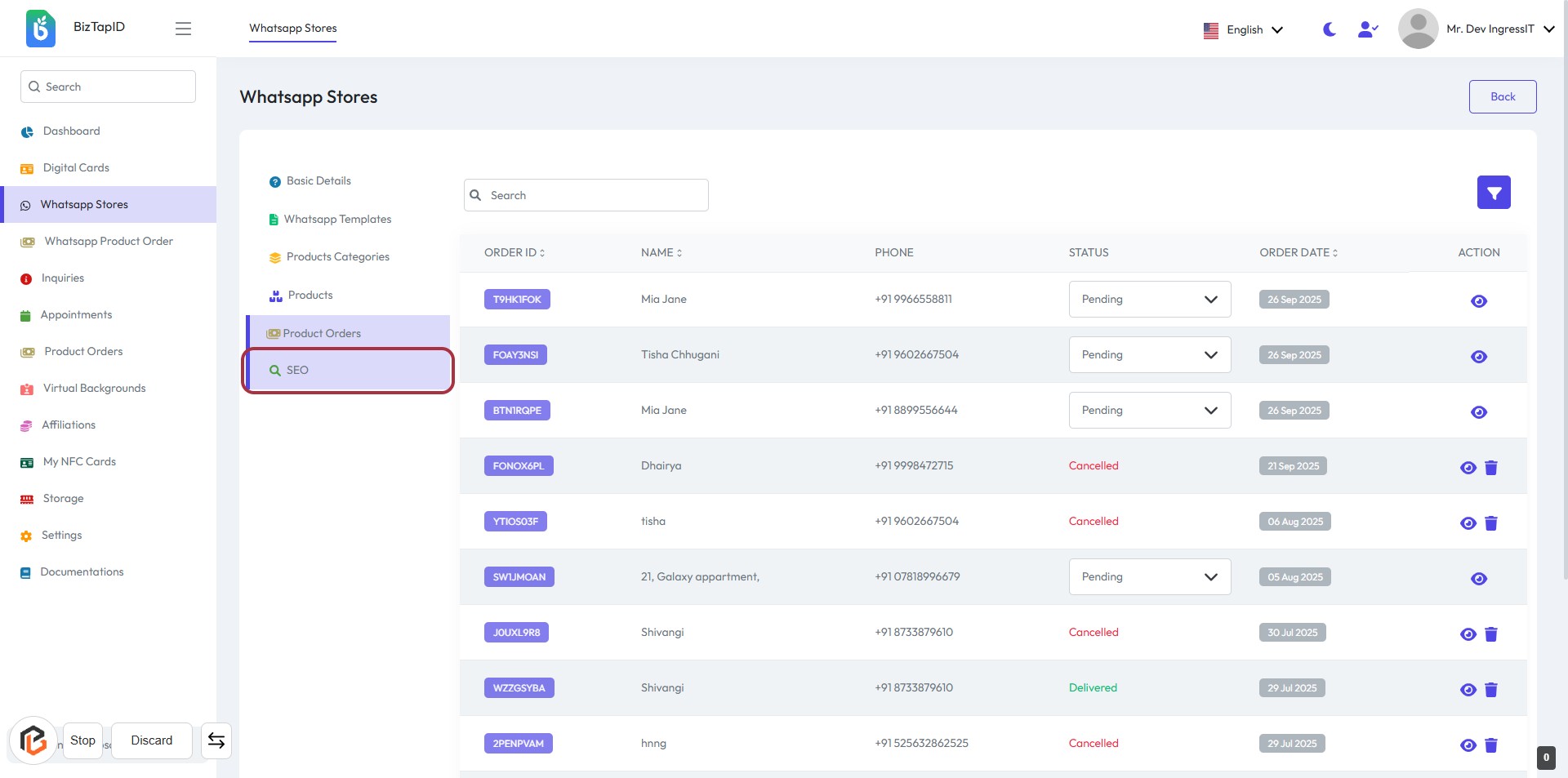
STEP 1: Click on "SEO" in WhatsApp Stores
- Navigate to the WhatsApp Stores section on the BizTapID website.
- Locate and click on the SEO link highlighted in the sidebar.
- This action will direct you to the relevant product orders for SEO.
- Ensure you have the necessary permissions to access this section.
STEP 2: Enter "Site Title"
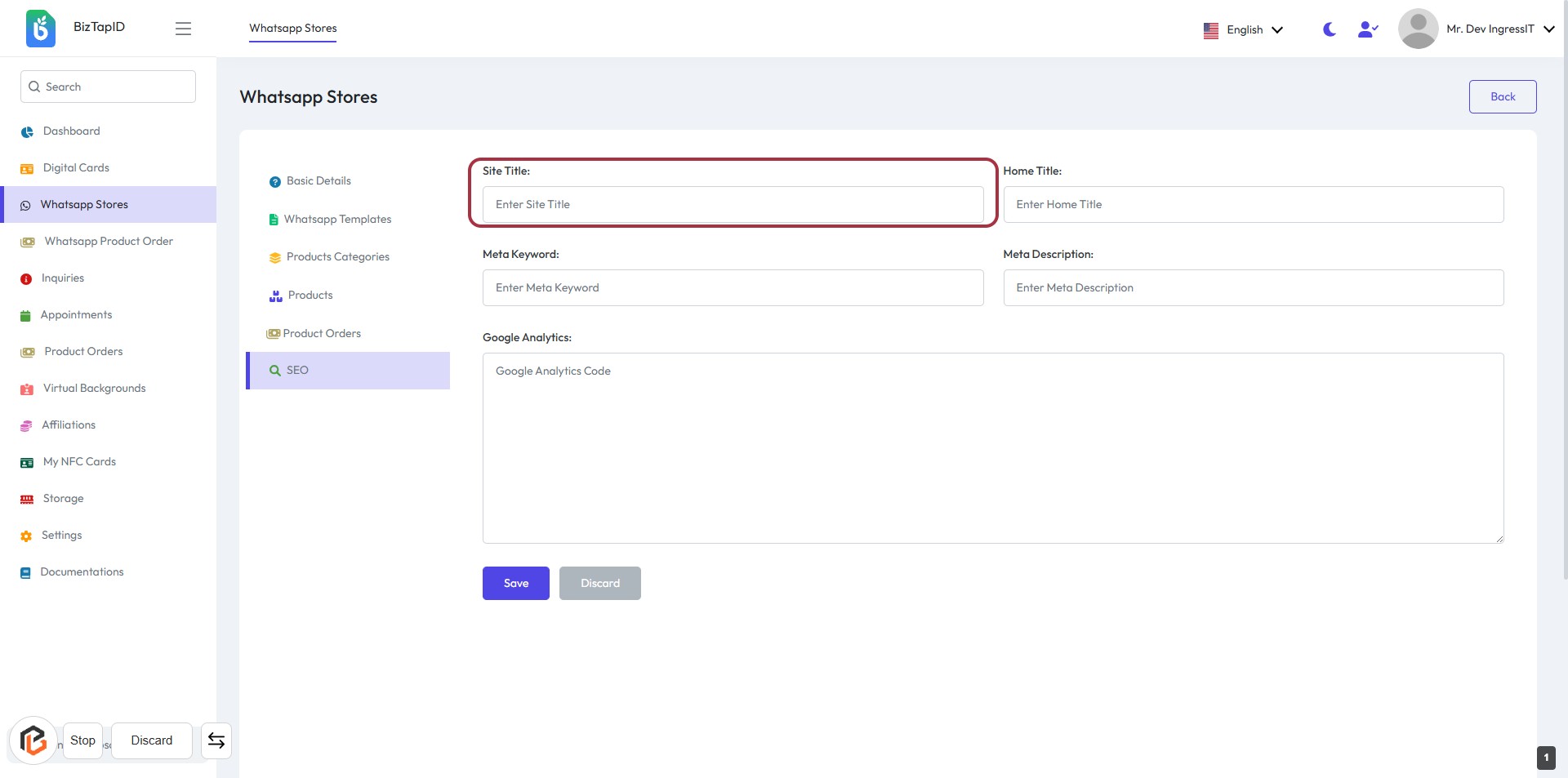
- Click on the "Site Title" field highlighted in red.
- Input the desired title for your site.
- Ensure the title accurately reflects your site's content.
- This field is required (indicated by the absence of an asterisk).
- Proceed to the next step by entering the "Home Title."
STEP 3: Enter "Home Title:"
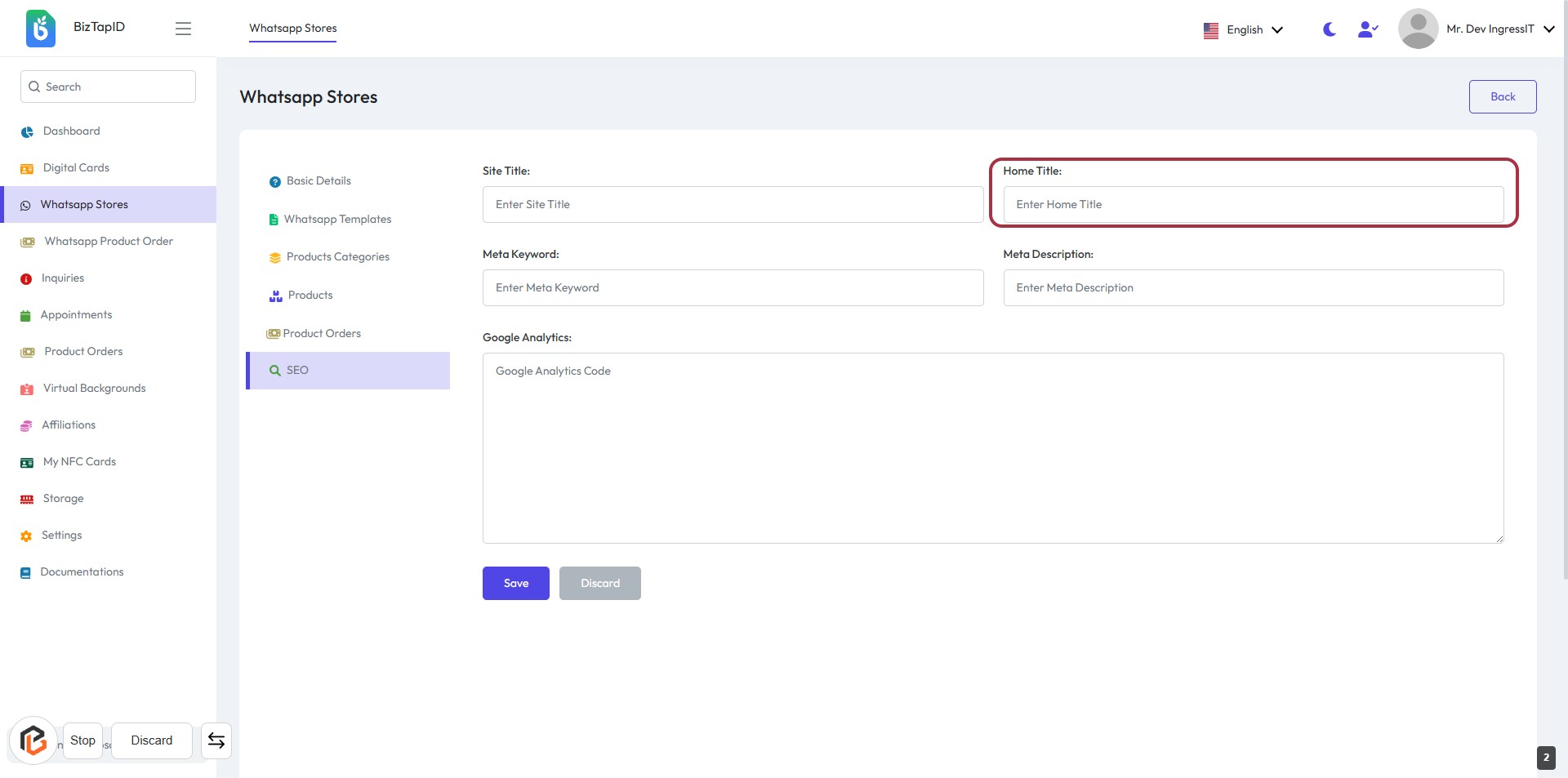
- Click on the "Home Title:" field.
- Input the desired title for your homepage.
- Ensure the title is relevant to your content.
- This field is mandatory; look for the asterisk (*) if present.
- Proceed to the next step by entering the "Meta Keyword."
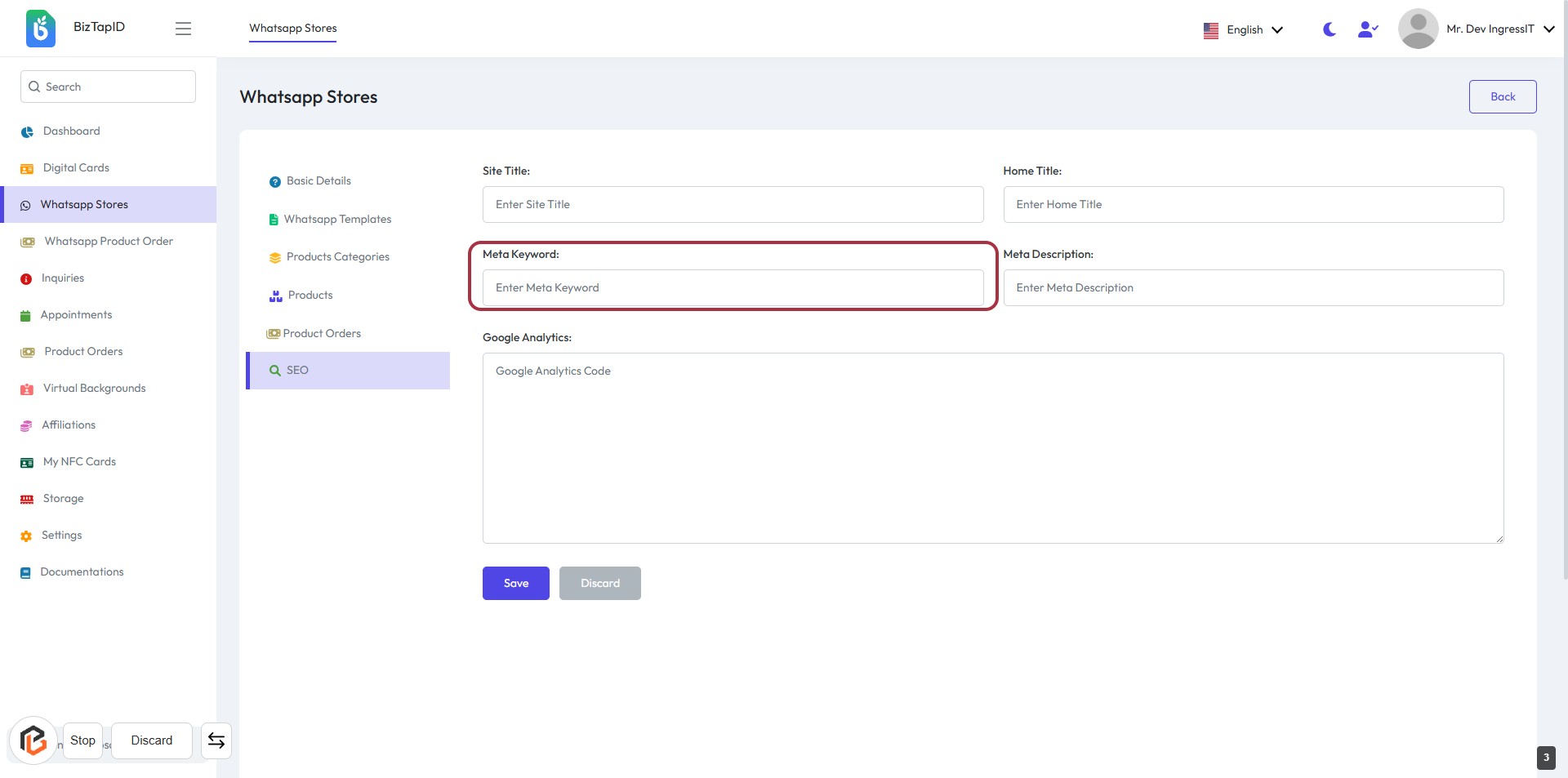
STEP 4: Enter "Meta Keyword"
- Click on the "Meta Keyword:" field.
- Input relevant keywords that describe your content.
- Ensure keywords are separated by commas for better SEO.
- This field is optional but recommended for enhancing search visibility.
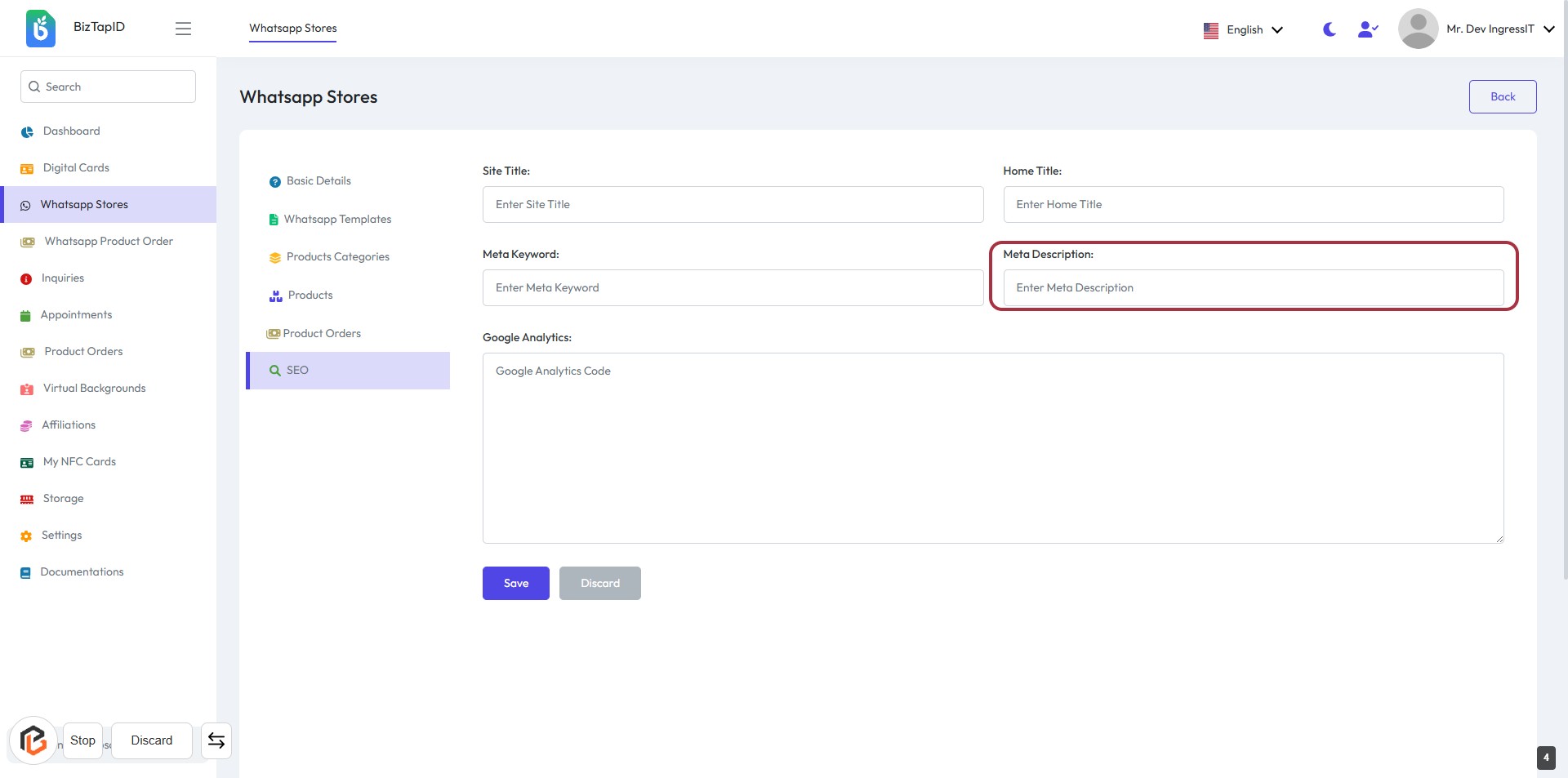
STEP 5: Enter "Meta Description"
- Click on the "Meta Description" field.
- Input a concise description of your webpage (recommended length: 150-160 characters).
- Ensure it accurately reflects the content of the page for better SEO.
- Proceed to the next step by clicking on "Google Analytics" after saving your changes.
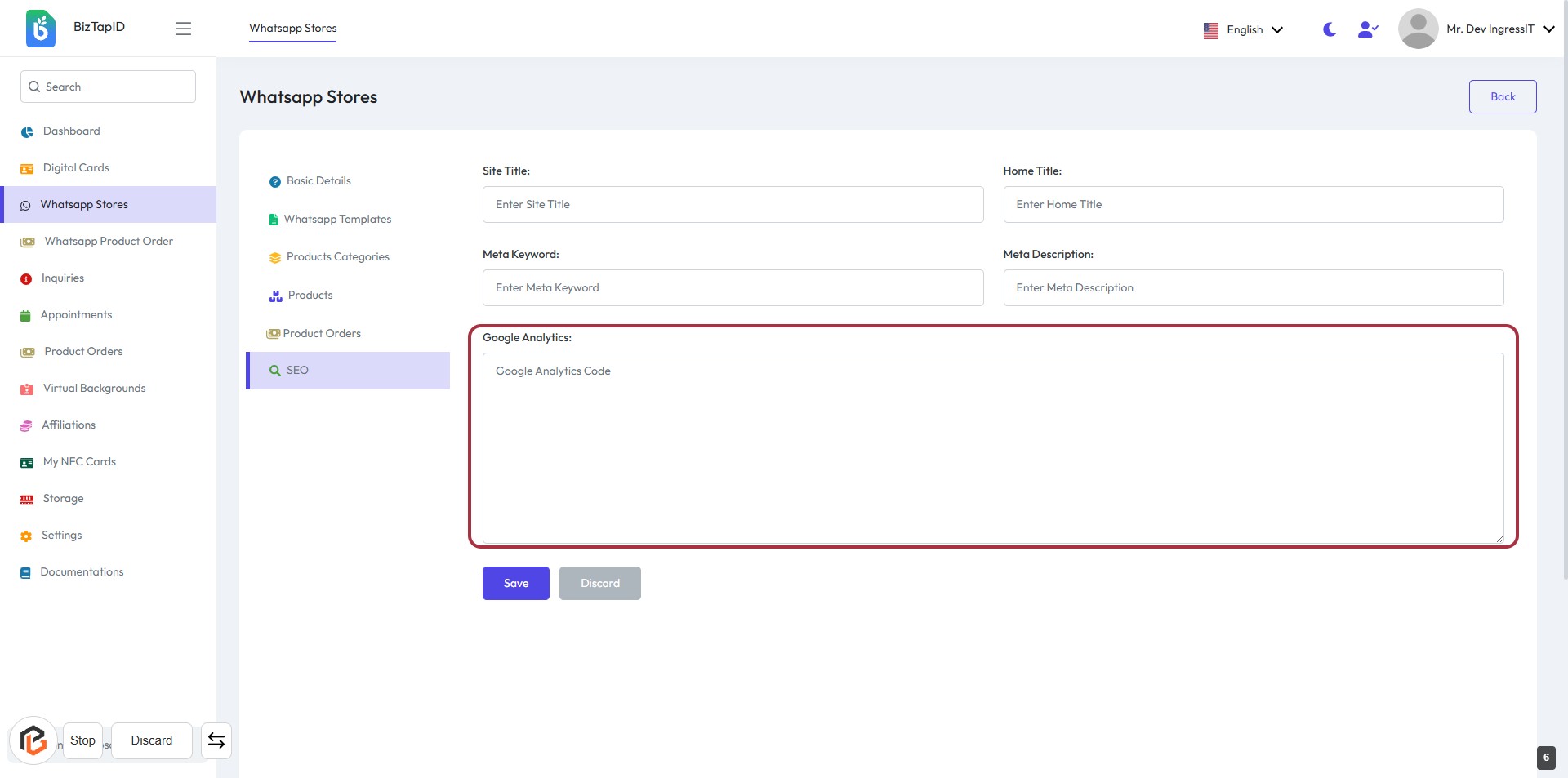
STEP 6: Click on "Google Analytics" Field
- Navigate to the Google Analytics section in the form.
- Click on the highlighted area to activate the input field.
- Enter your Google Analytics Code in the provided text area.
- Ensure all other required fields are filled before proceeding.
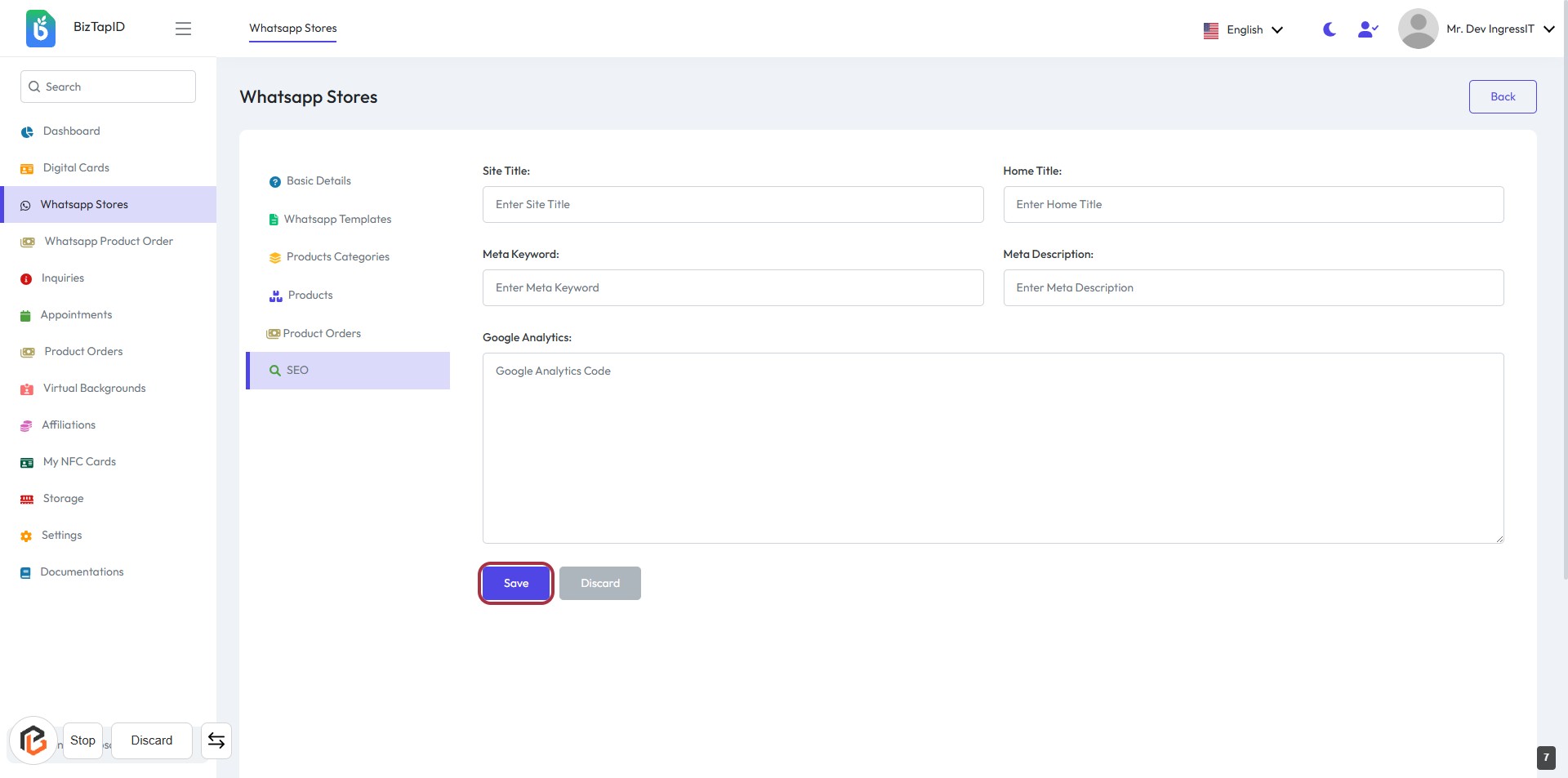
- Click on the Save button to finalize your changes.
STEP 7: Click on "Save" Button
- Ensure all required fields (marked with *) are filled out:
- Site Title
- Home Title
- Meta Keyword
- Meta Description
- Google Analytics Code
- Click the Save button to save your changes.
- Review the confirmation message to ensure successful saving.