Step-by-Step Guide to Managing Product Orders: Filtering and Updating Order Status
7 mins read · Updated 01 Oct, 2025
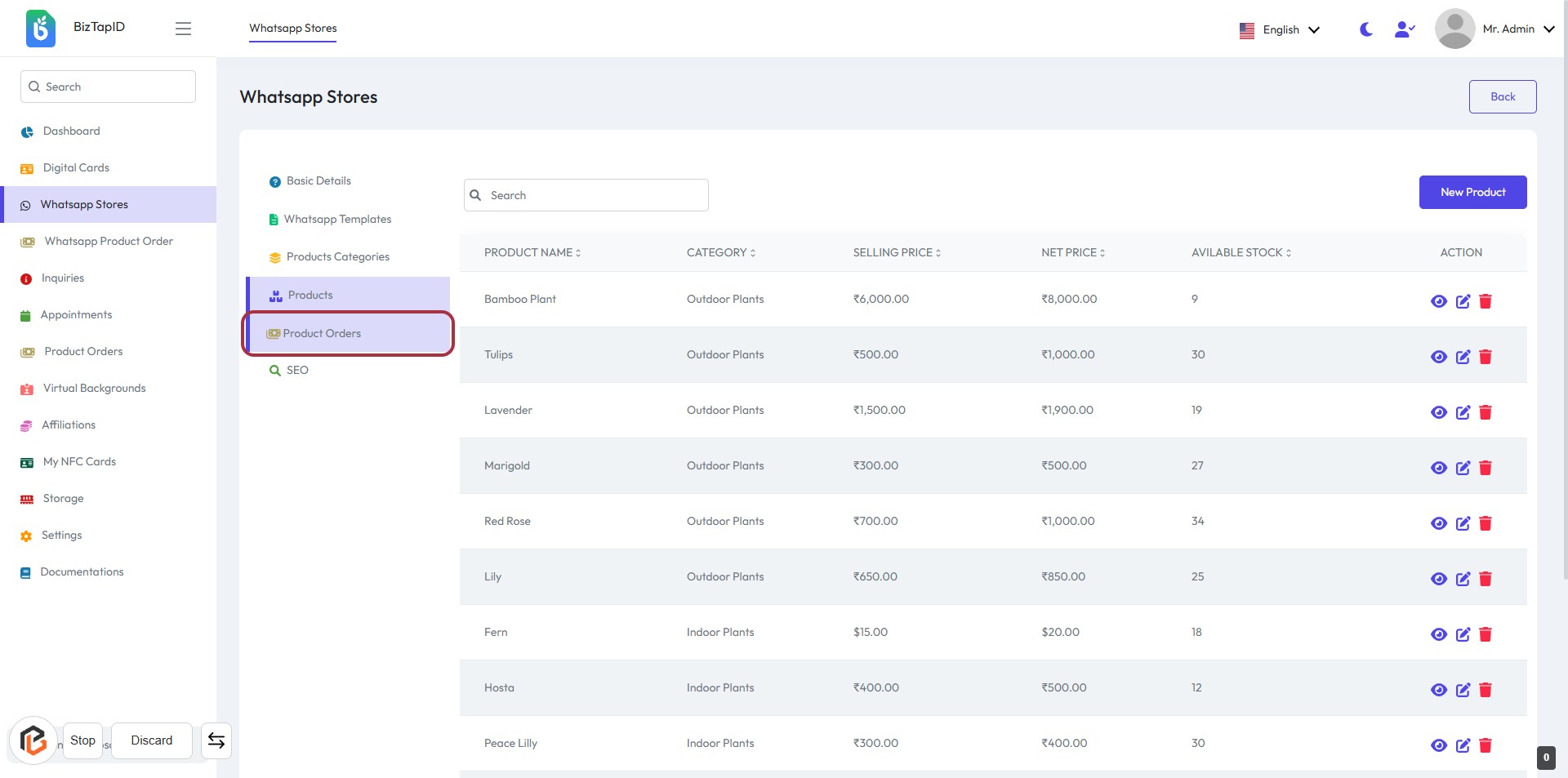
STEP 1: Click on "Product Orders"
- Navigate to the "Product Orders" section on the left sidebar.
- Click on the highlighted "Product Orders" link to access the product order details.
- Review the list of products displayed, including their names, categories, selling prices, net prices, and available stock.
- Prepare to apply filters by clicking on the "Filter" button in the next step.
STEP 2: Click on "Filter" Button
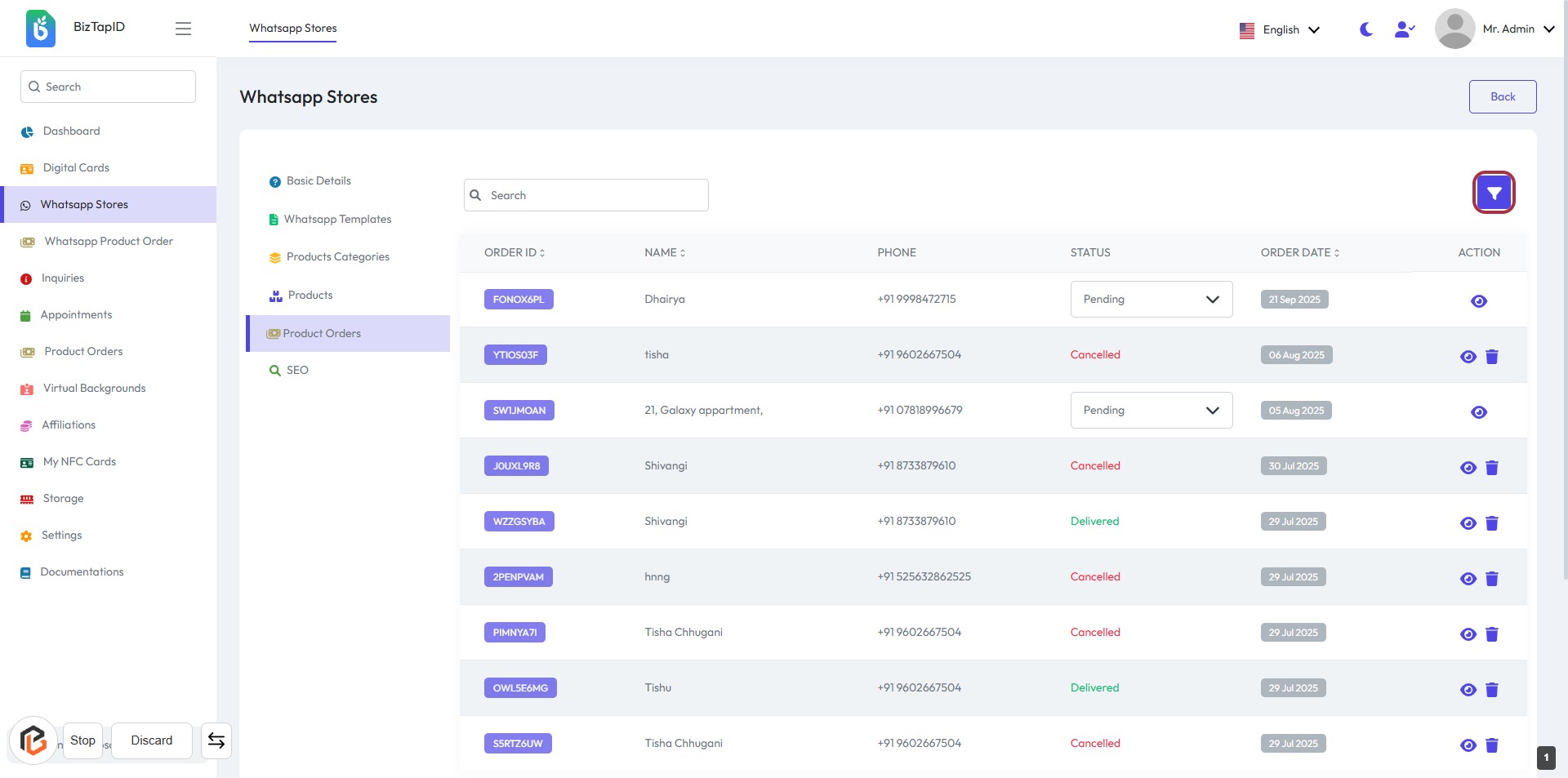
- Navigate to the Product Orders section.
- Click on the Filter button located at the top right of the orders table.
- This will allow you to filter the displayed orders based on their status.
- Ensure to check for any required fields marked with an asterisk (*) before proceeding to the next step.
STEP 3: Click on "Select Status"
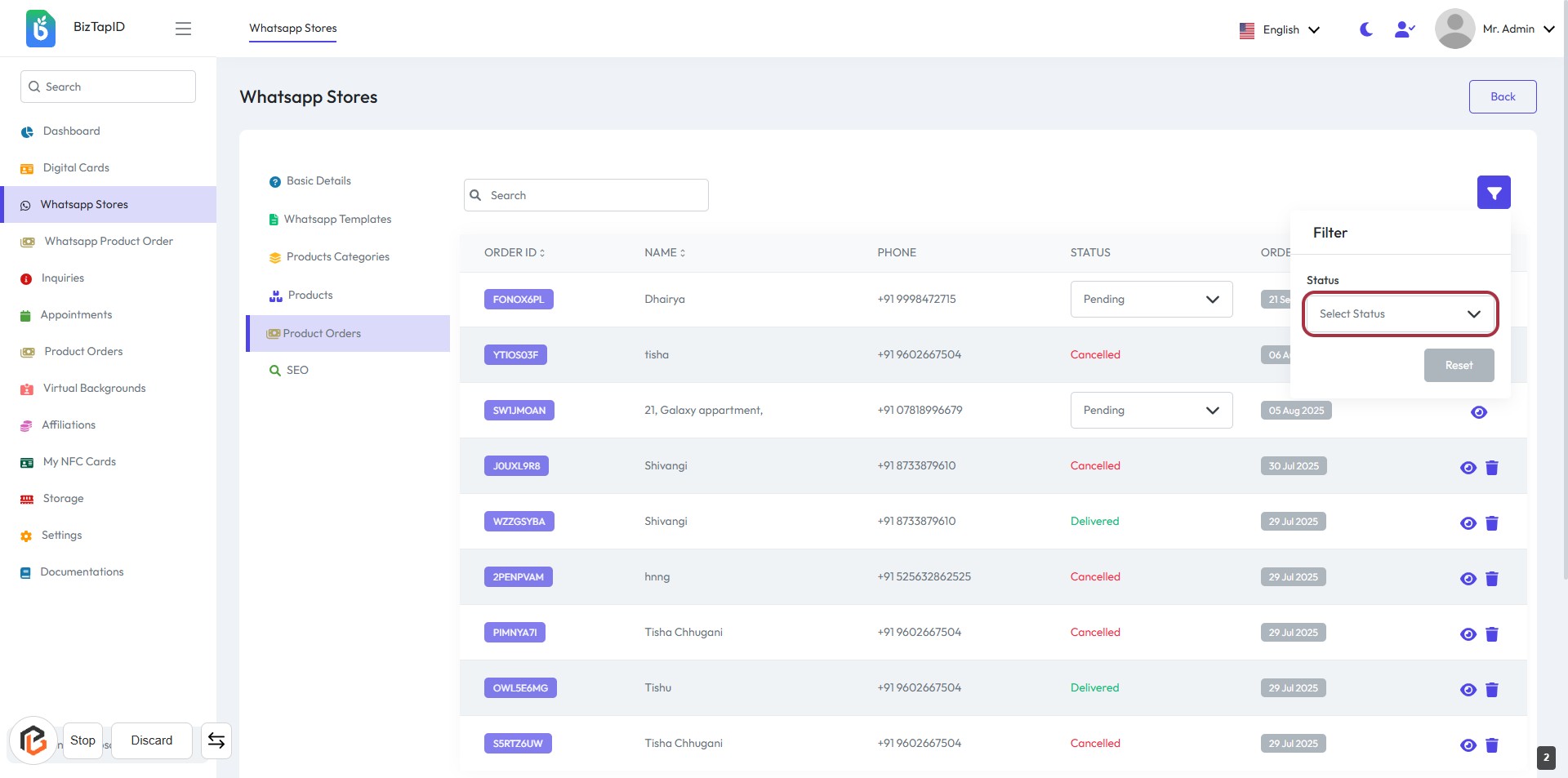
- Navigate to the filter section.
- Click on the highlighted area labeled "Select Status."
- A dropdown will appear with various status options.
- Choose the desired status from the dropdown.
- Ensure to review your selection before proceeding.
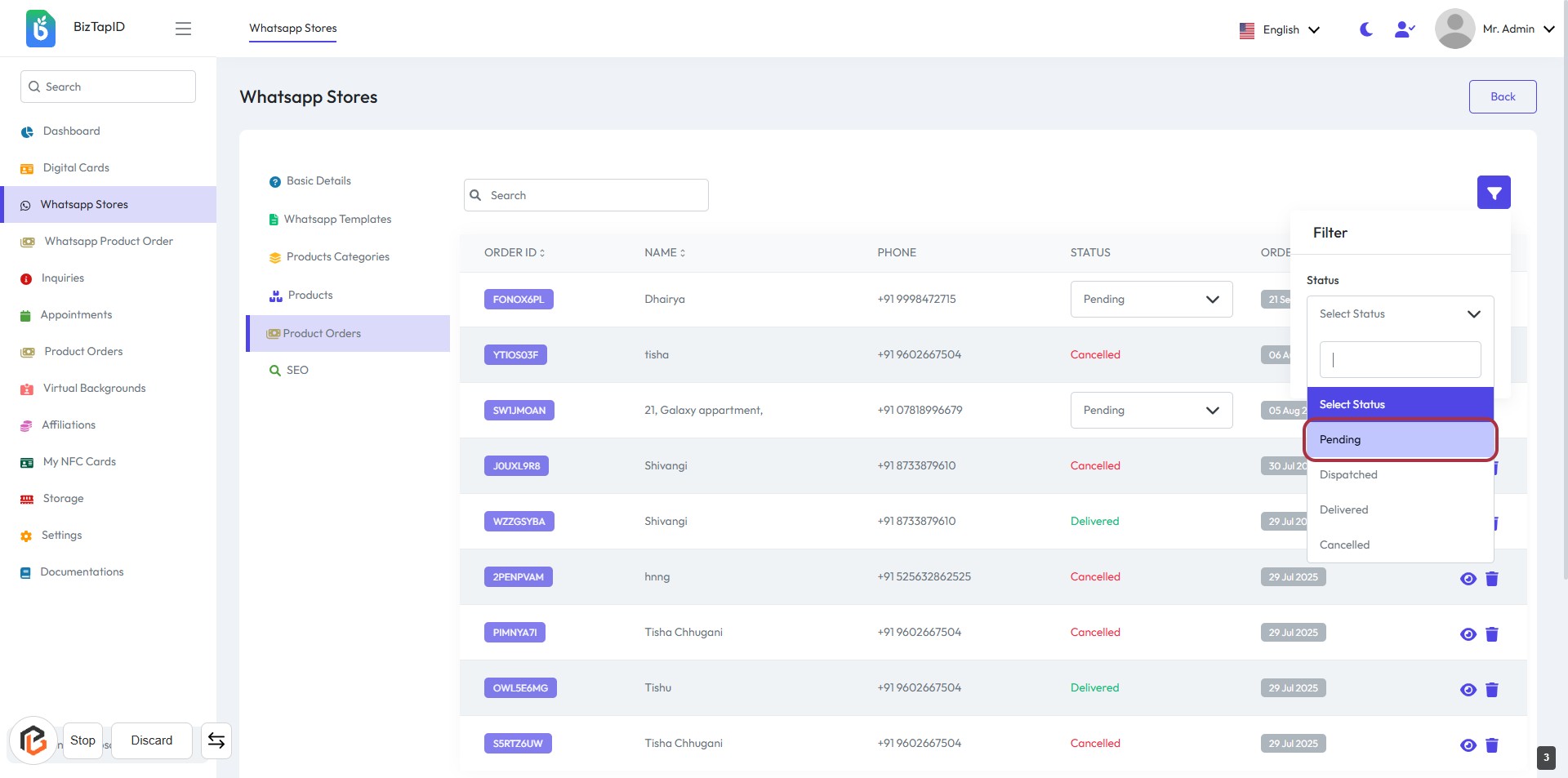
STEP 4: Select "Pending" Status
- Click on the "Select Status" dropdown.
- Choose "Pending" from the list of options.
- Ensure the selection is highlighted as shown in the red border area.
- Review any additional fields that may require input, marked with an asterisk (*).
- Proceed to the next step to view "Product Order in Pending."
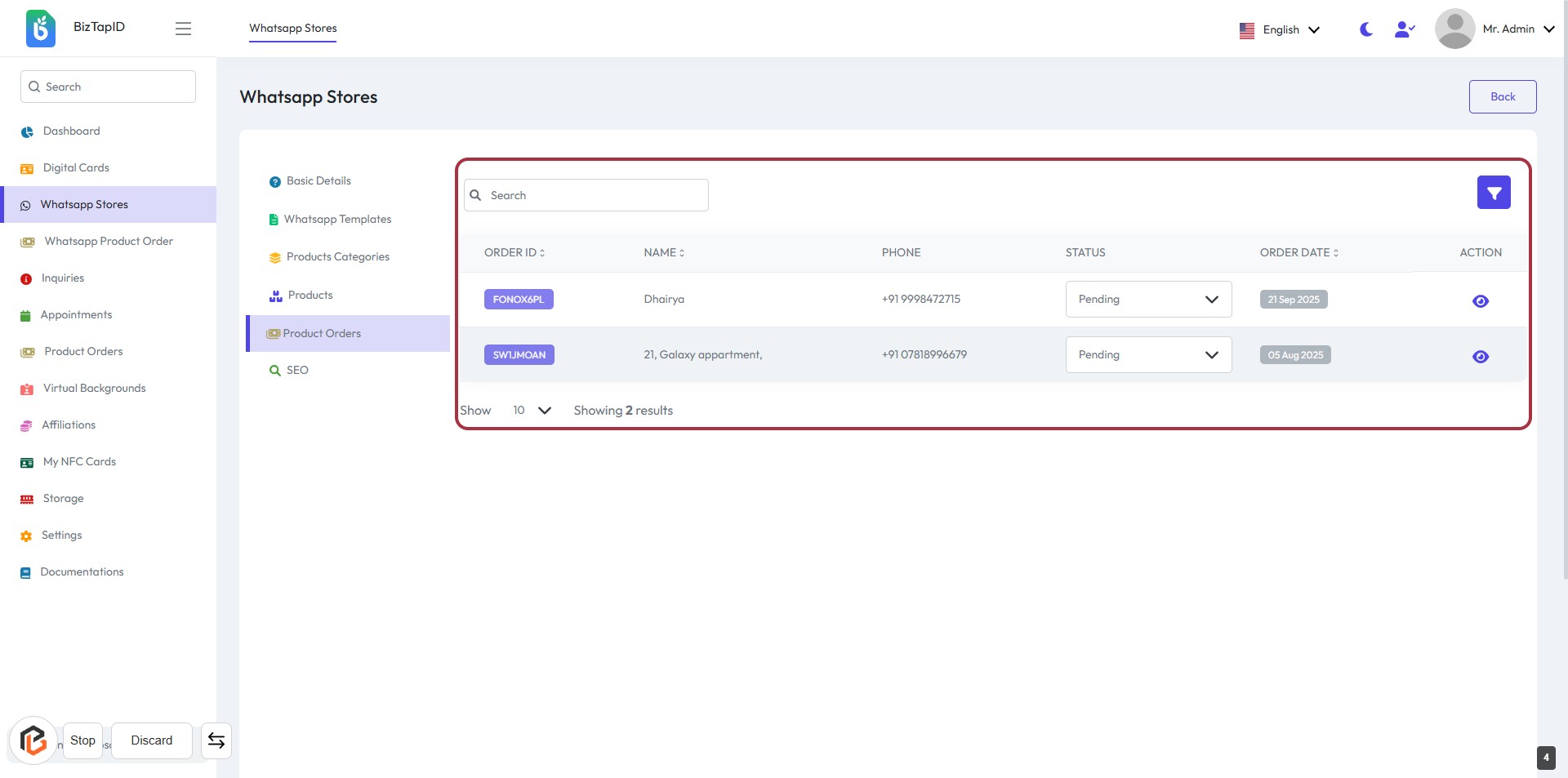
STEP 5: Click on "Product Order in Pending"
- Ensure you are connected to the internet.
- Locate the highlighted area in the Product Orders section.
- Click on the "Status Options" dropdown to view available statuses.
- Review the order details displayed, including Order ID, Name, Phone, and Order Date.
- If needed, adjust the status for any pending orders.
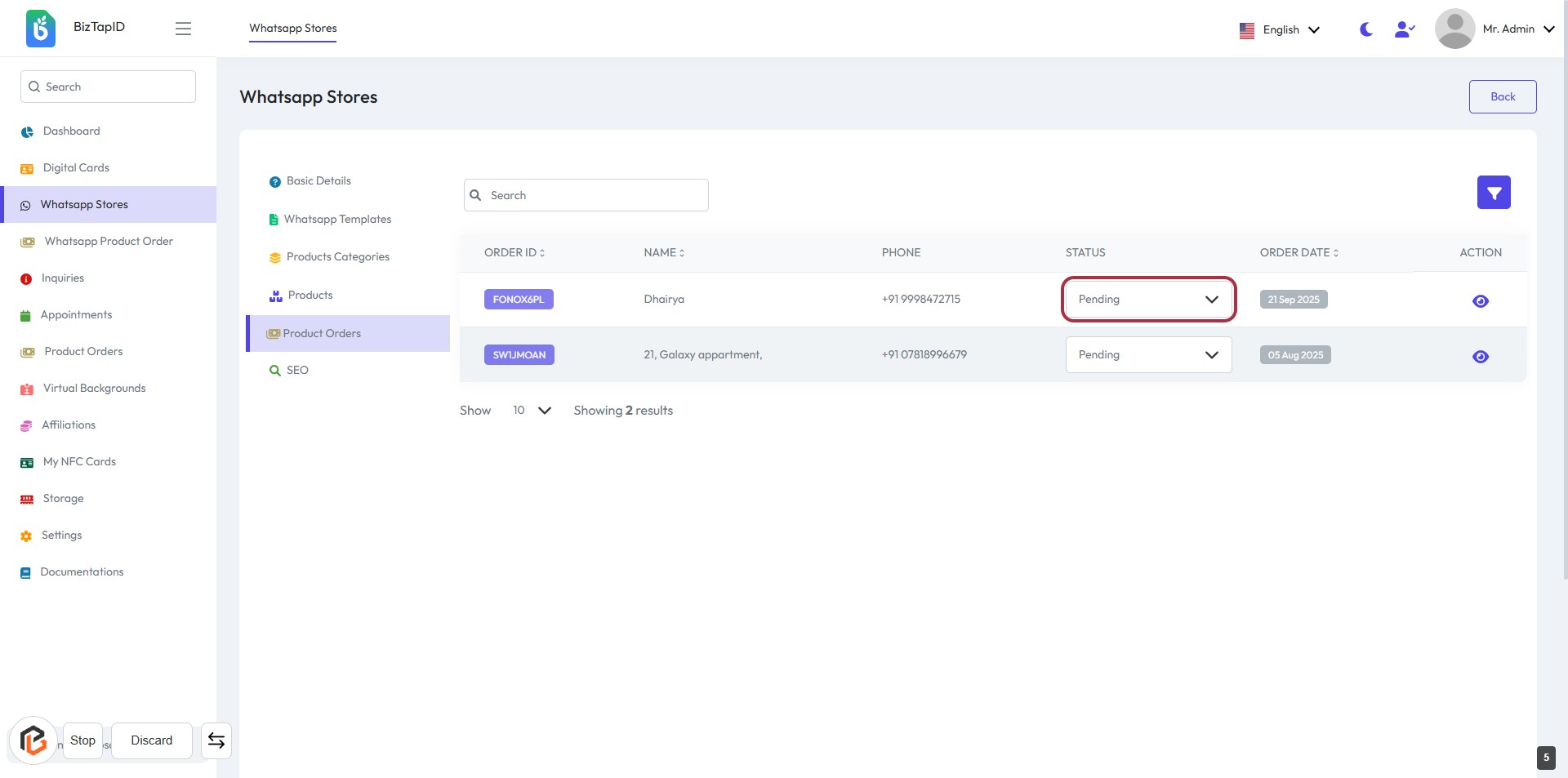
STEP 6: Click on "Status Options"
- Locate the "Status" column in the table.
- Click on the highlighted "Pending" status.
- A dropdown will appear with various status options.
- Select the desired status from the dropdown to update the order.
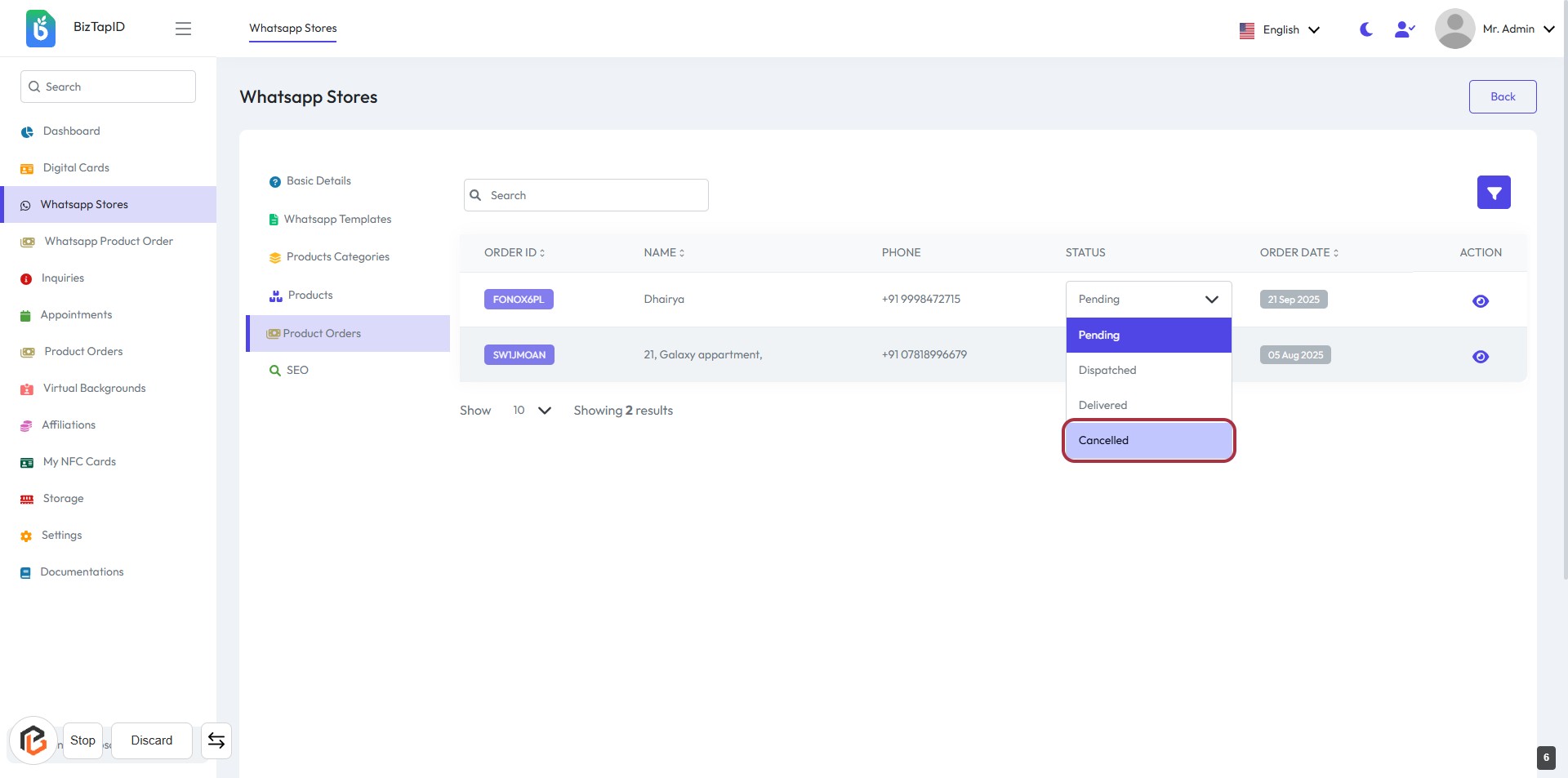
STEP 7: Click "Cancelled" to Change Order Status
- Navigate to the "Order Status" dropdown.
- Click on the option labeled "Cancelled" highlighted in the dropdown.
- Ensure the status updates accordingly in the order list.
- Review other status options if needed, such as "Pending," "Dispatched," or "Delivered."