Step-by-Step Guide to Order Indoor Plants via WhatsApp on the BizTapID Dashboard
15 mins read · Updated 01 Oct, 2025
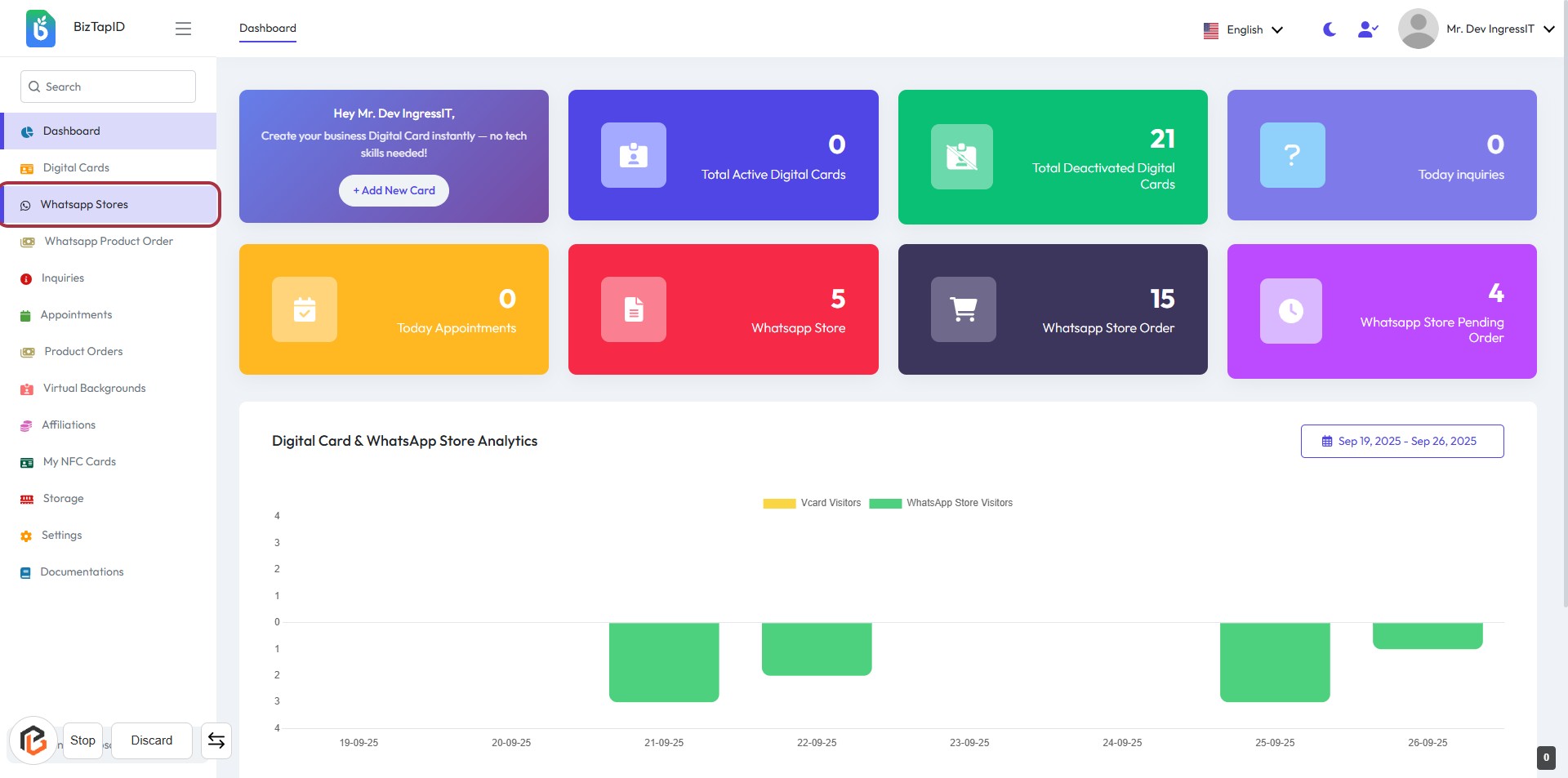
STEP 1: Click on "Whatsapp Stores"
- Navigate to the BizTapID dashboard.
- Locate the "Whatsapp Stores" option in the sidebar menu.
- Click on "Whatsapp Stores" to proceed to the next section.
- Ensure you are ready to enter any required information in the upcoming step.
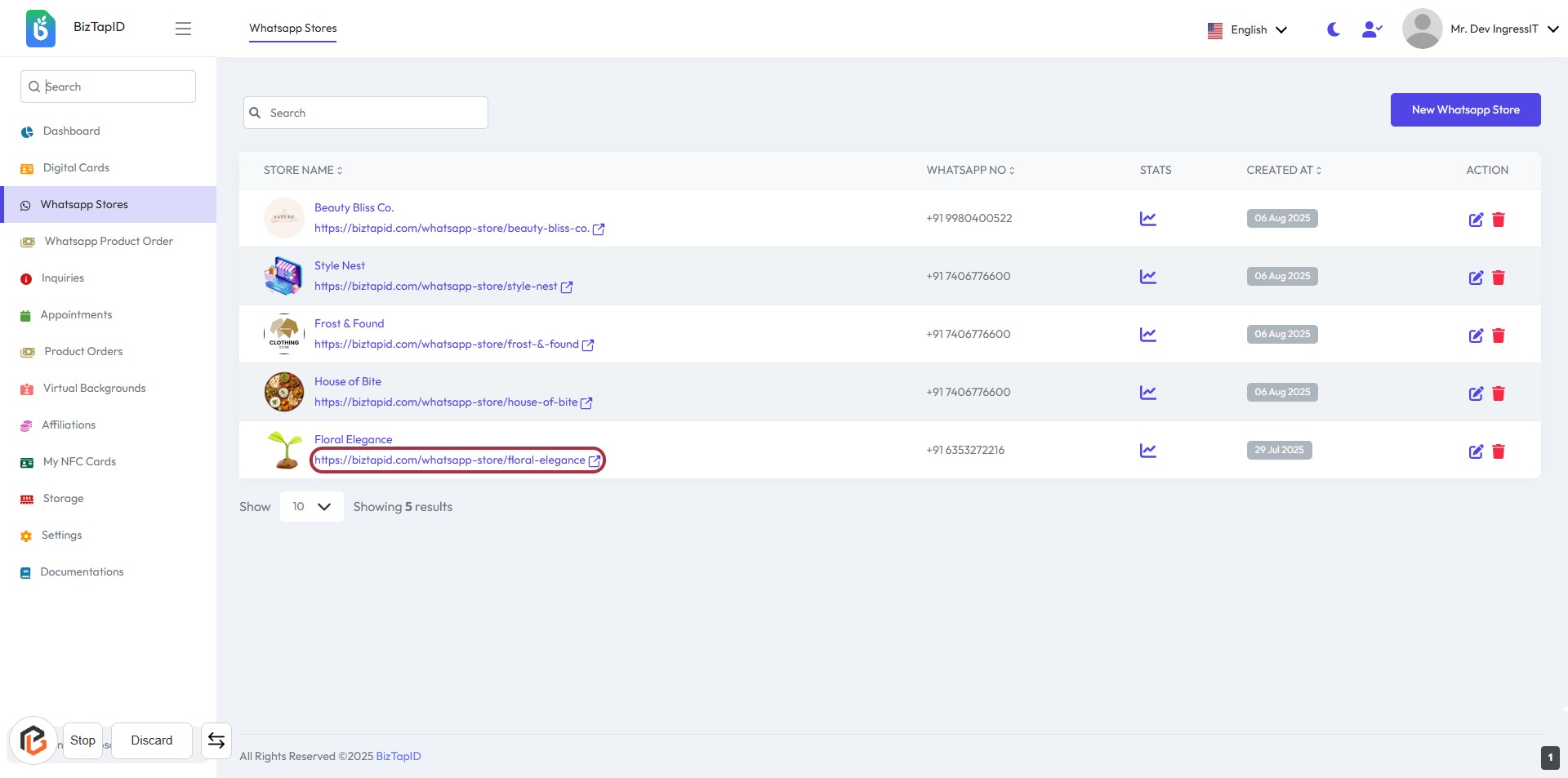
STEP 2: Click on "WhatsApp Store URL"
- Navigate to the "Whatsapp Stores" section.
- Locate the "Floral Elegance" entry in the list.
- Click on the highlighted URL:
https://biztapid.com/whatsapp-store/floral-eleganc. - Ensure you have the correct store selected before proceeding to the next step.
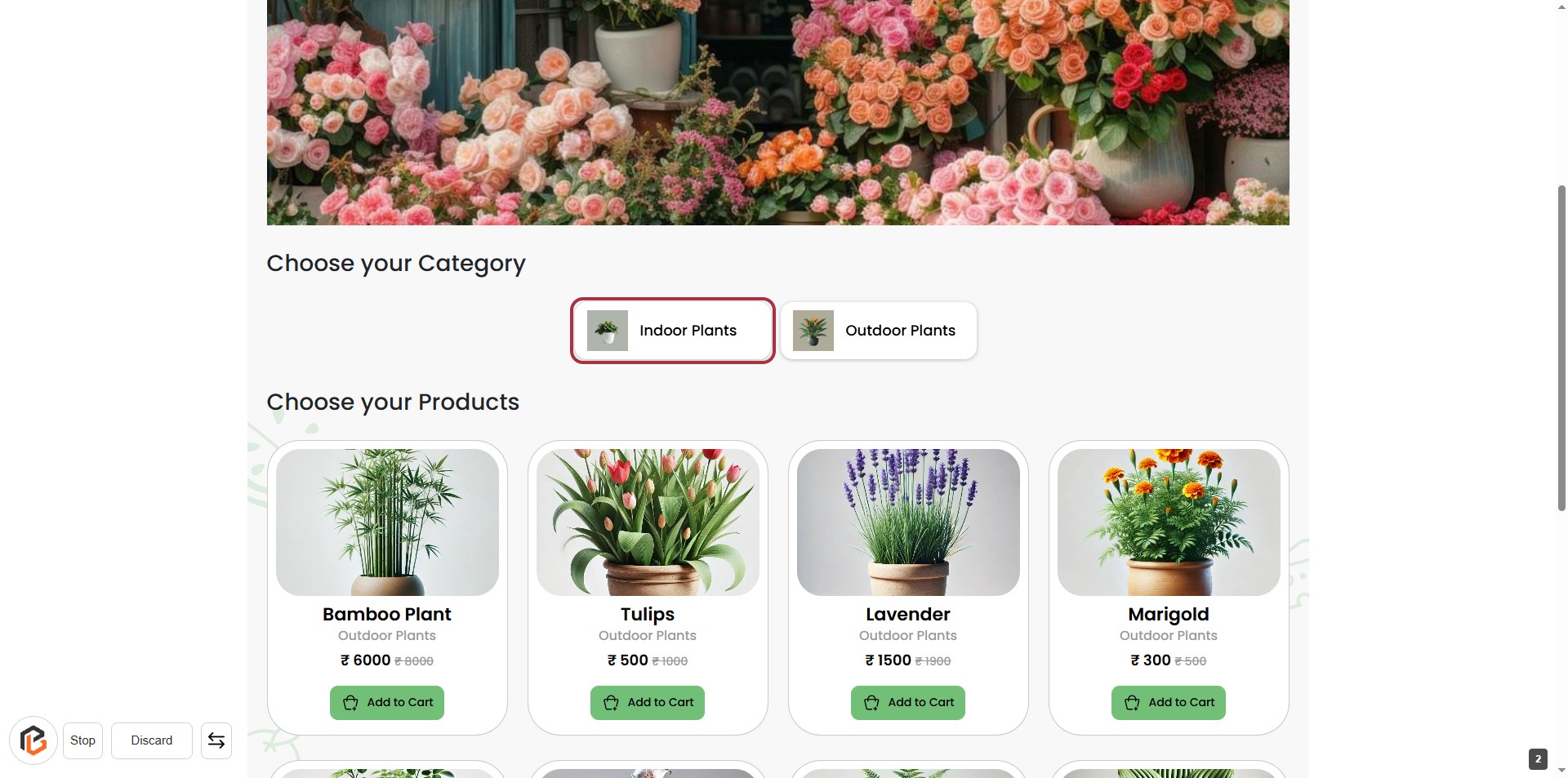
STEP 3: Click on "Indoor Plants" to Select Category
- Navigate to the "Choose your Category" section.
- Click on the "Indoor Plants" option highlighted in red.
- This action will display the available indoor plant products for selection.
- Ensure you are ready to proceed to the next step of adding a product to your cart.
STEP 4: CLICK on "Add to Cart" to add product in cart
- Locate the product you wish to add from the displayed options.
- Click the "Add to Cart" button associated with the selected product.
- Ensure the product is successfully added to your cart for checkout.
- Review your cart to confirm the addition before proceeding to payment.
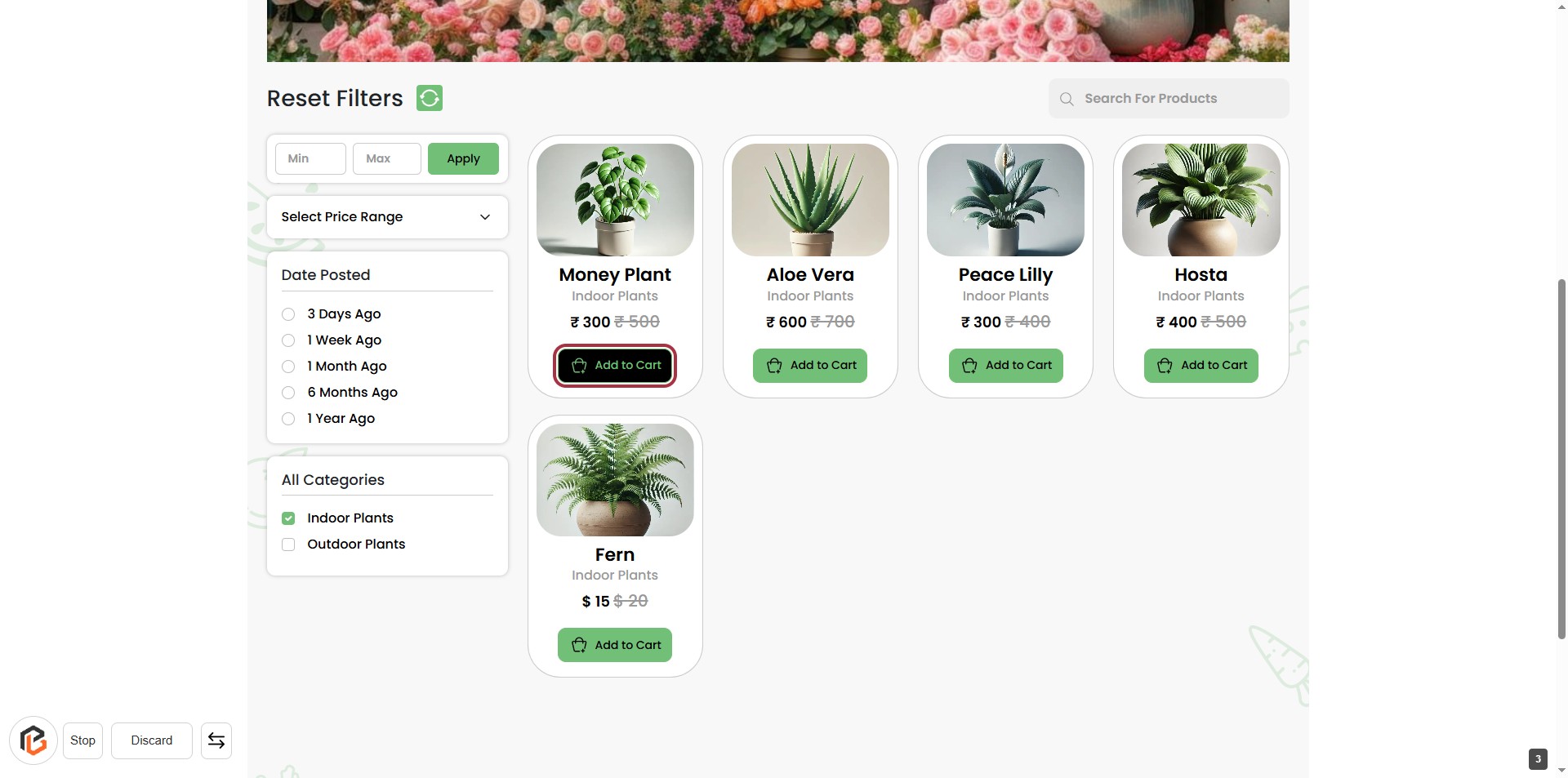
STEP 5: Click on "Add to Cart" for Selected Product
- Locate the product you wish to add to your cart.
- Click the "Add to Cart" button, highlighted in red.
- Ensure the product is successfully added; a confirmation message will appear.
- Proceed to the next step by clicking on the "Cart" icon to view your selections.
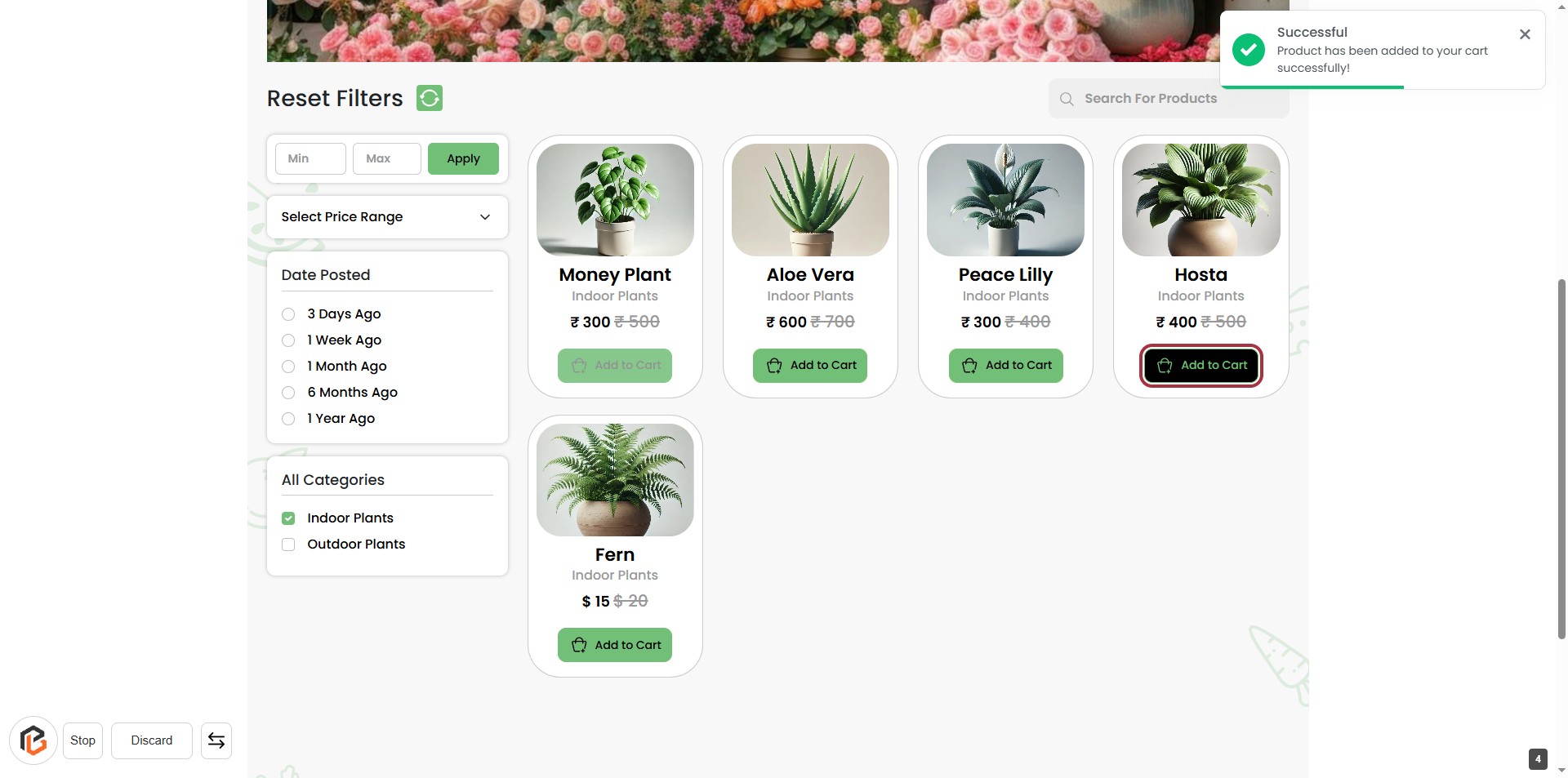
STEP 6: Click on "Cart" Icon
- Locate the cart icon at the top right corner of the page.
- Click on the cart icon to view the items you have added.
- Ensure the number displayed (2) reflects the correct quantity of items in your cart.
- Review your selections before proceeding to checkout.
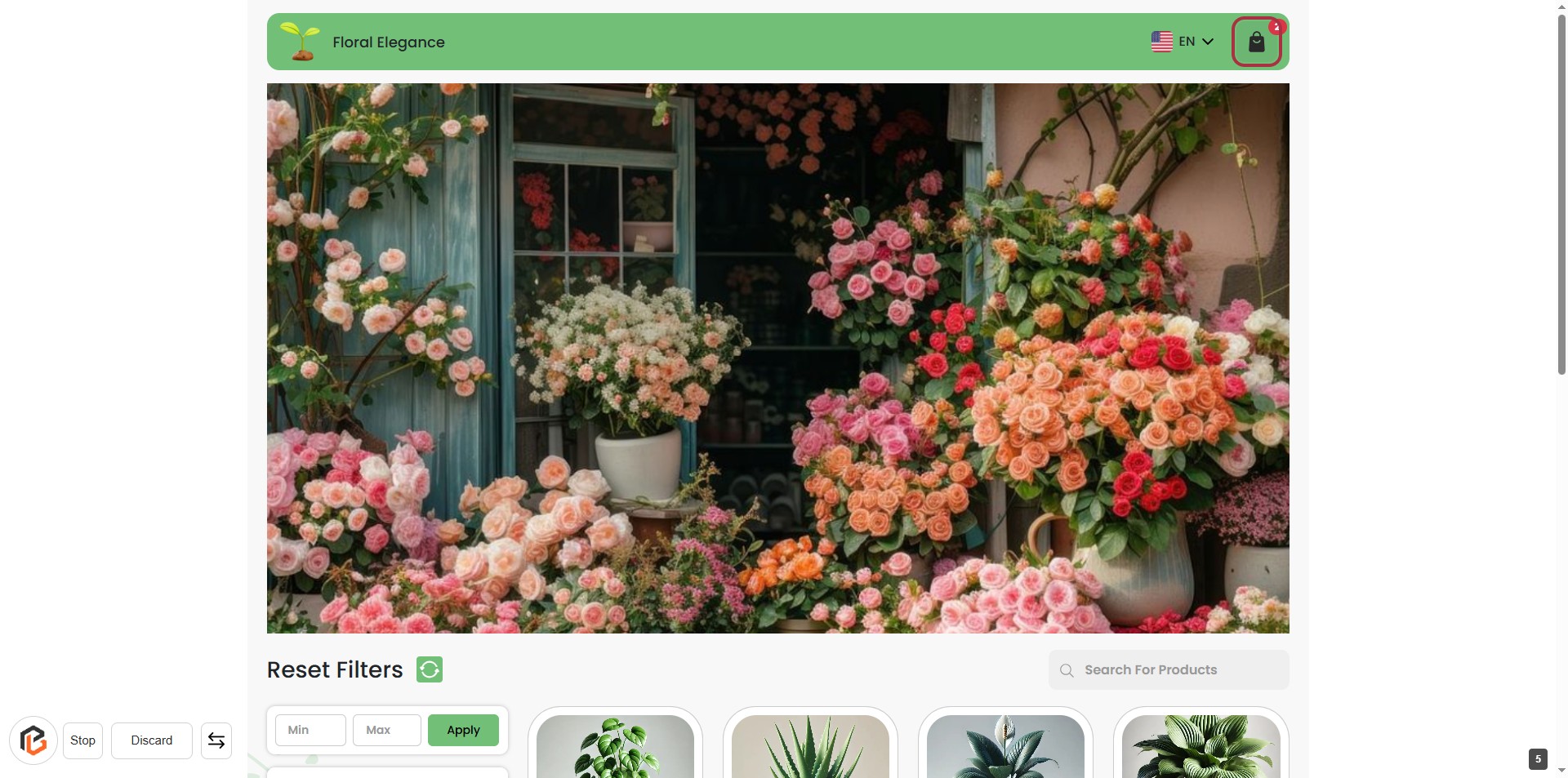
STEP 7: Click on "Order Now"
- Ensure all items in your cart are correct.
- Click the Order Now button to proceed with your purchase.
- Review the grand total displayed at the bottom of the cart.
- If needed, adjust quantities or remove items before clicking.
- After clicking, you will be directed to enter your name in the next step.
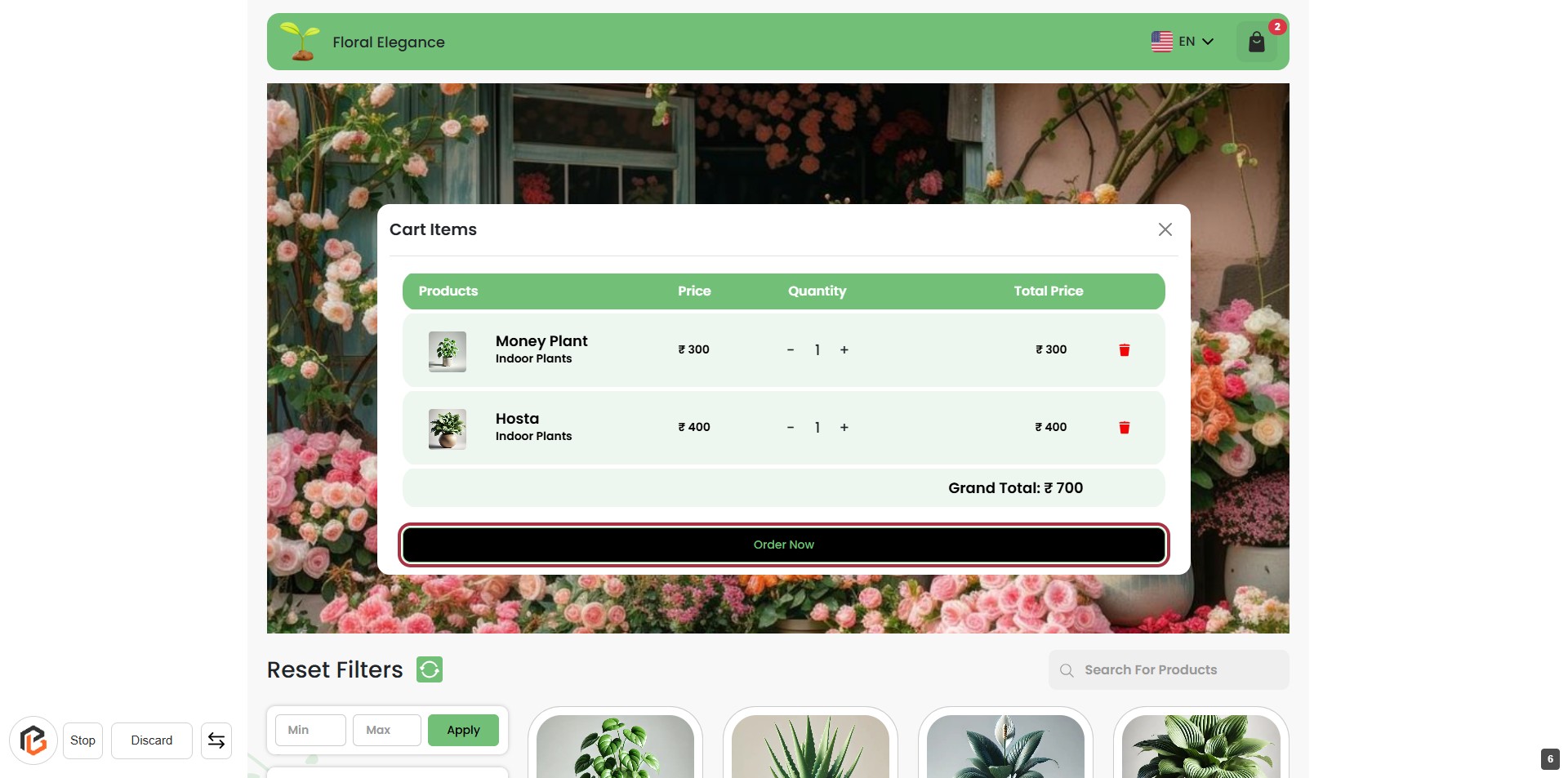
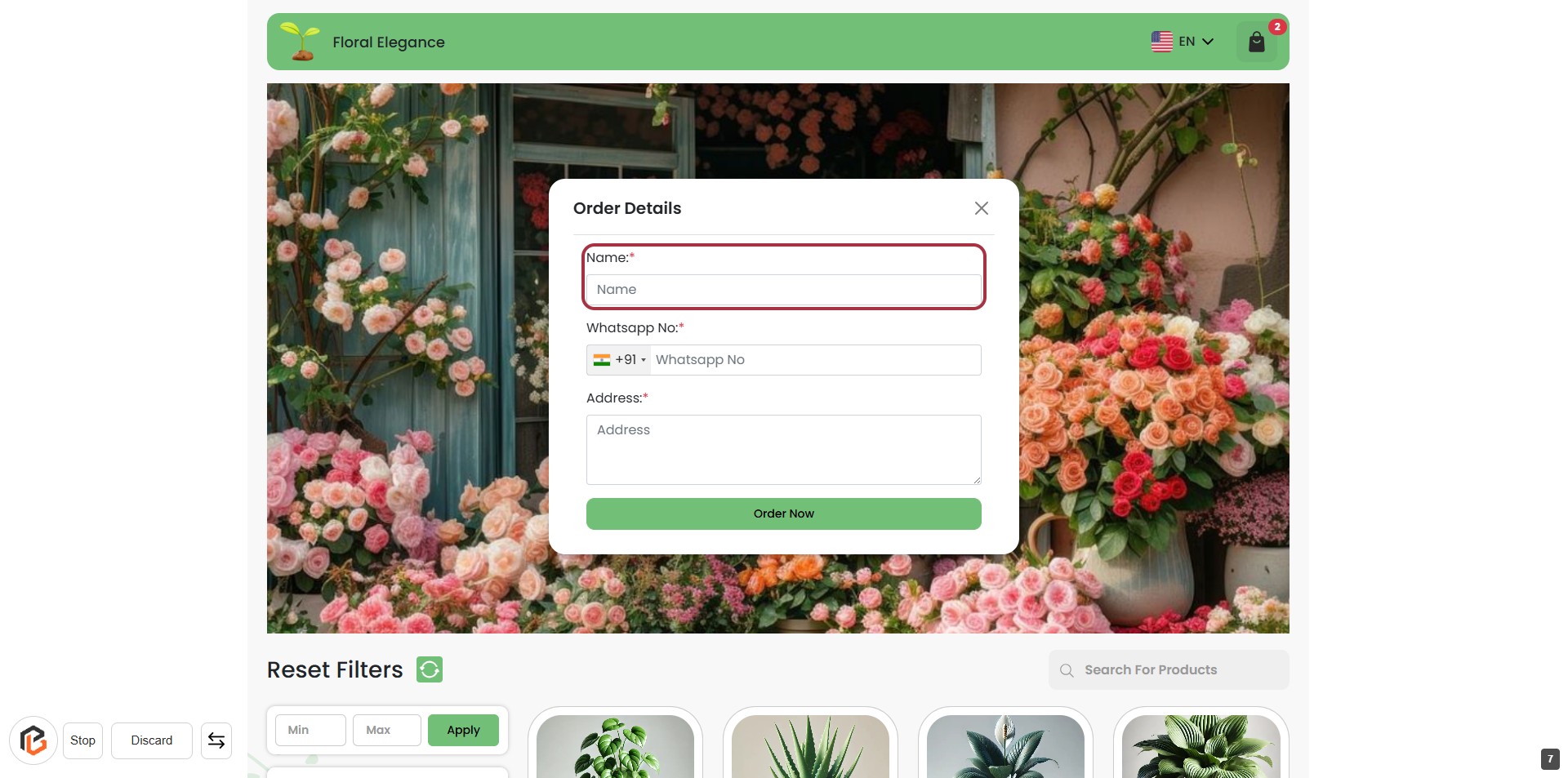
STEP 8: Enter Name in Order Details
- Click on the highlighted area labeled "Name:*" to input your name.
- Ensure to fill in this field as it is marked with an asterisk (*), indicating it is required.
- After entering your name, proceed to the next step by entering your "WhatsApp No."
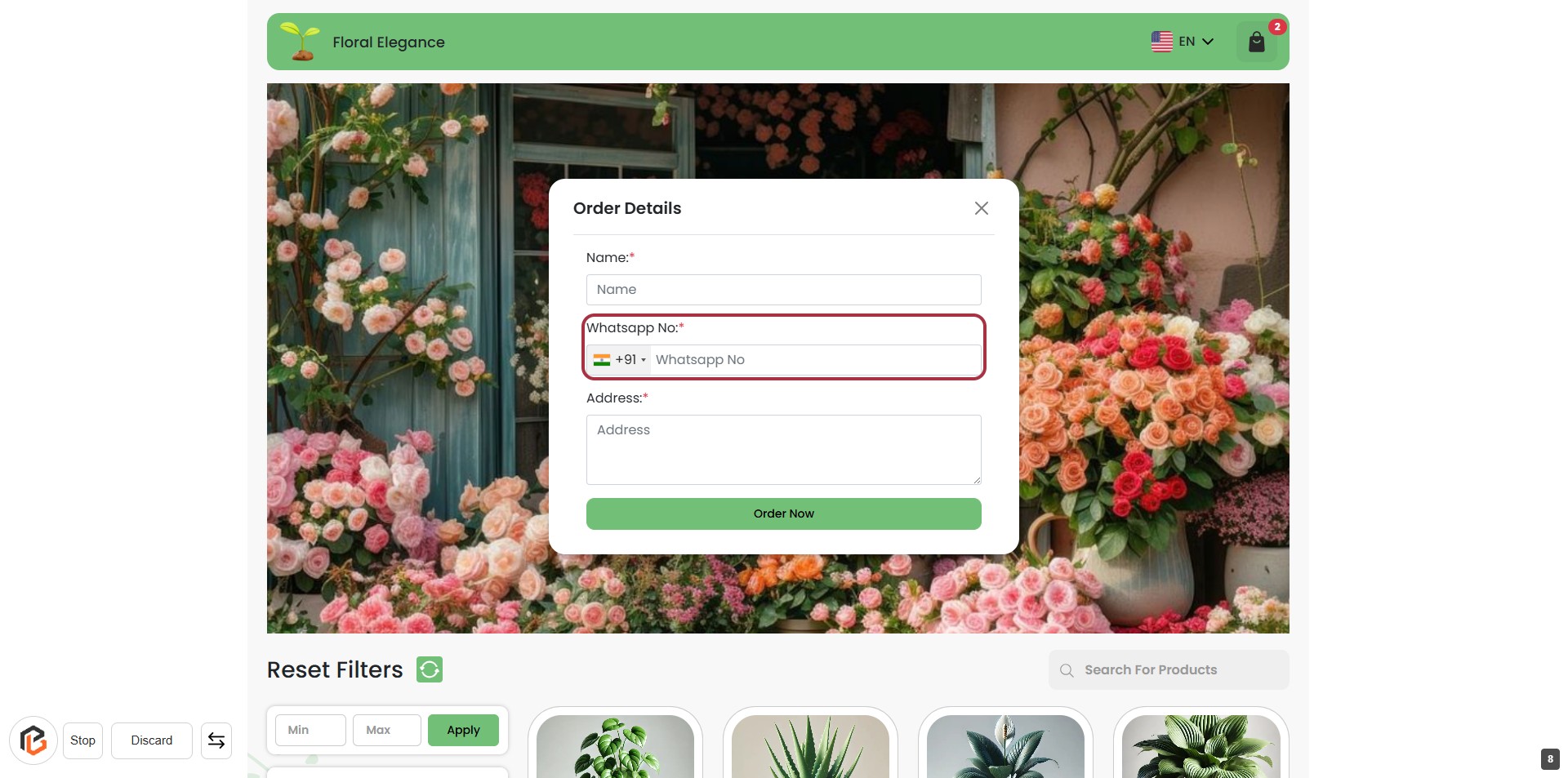
STEP 9: Enter WhatsApp No
- Click on the "WhatsApp No:" field in the Order Details form.
- Ensure to enter your WhatsApp number, including the country code.
- The field is mandatory, indicated by the asterisk (*).
- After entering the number, proceed to the next step by clicking on the "Address" field.
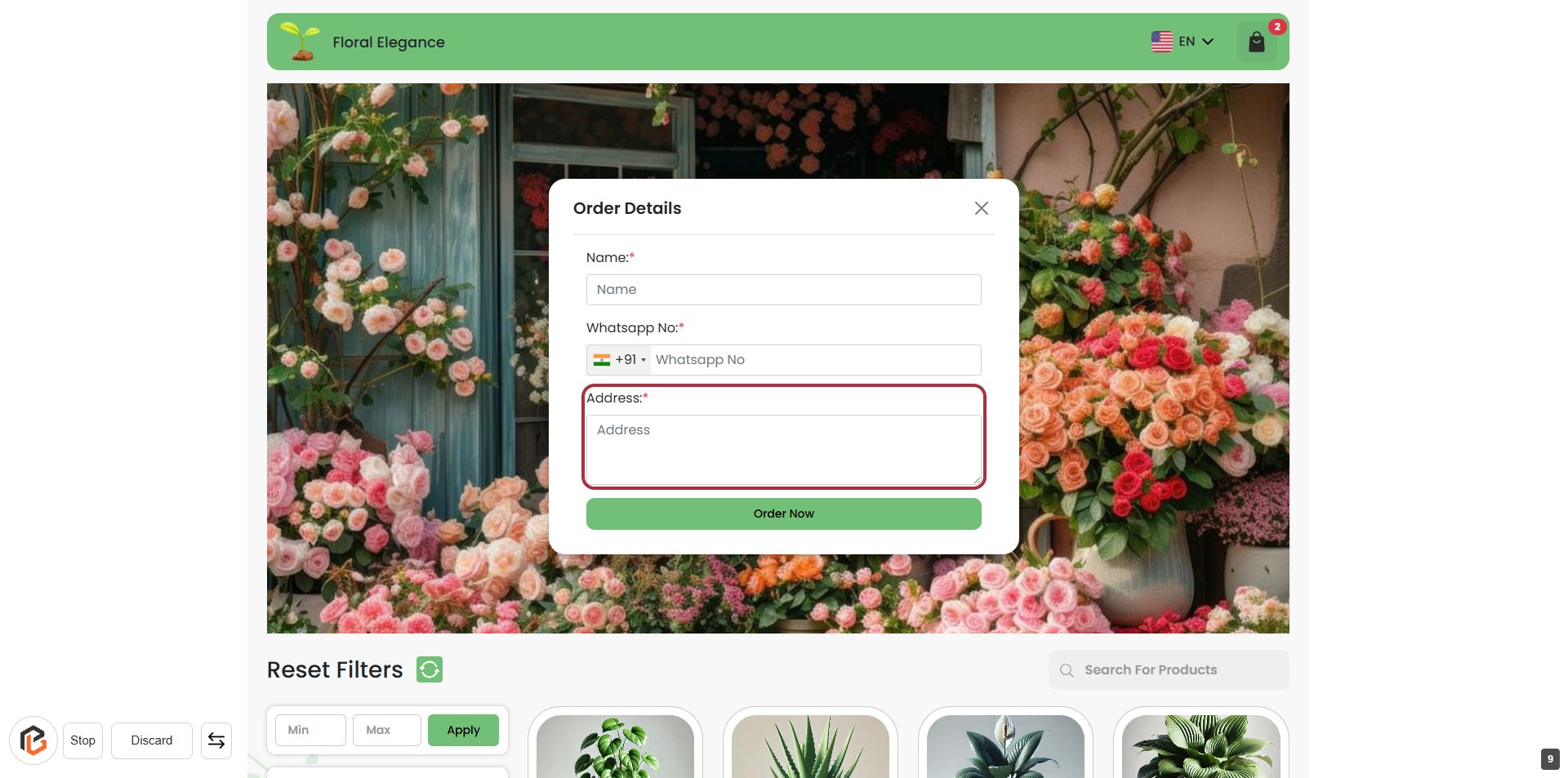
STEP 10: Enter Address
- Click on the "Address" field to input your address.
- Ensure to fill in the required field marked with an asterisk (*).
- Double-check the entered address for accuracy before proceeding.
- After entering the address, you can move to the next step by clicking "Order Now."
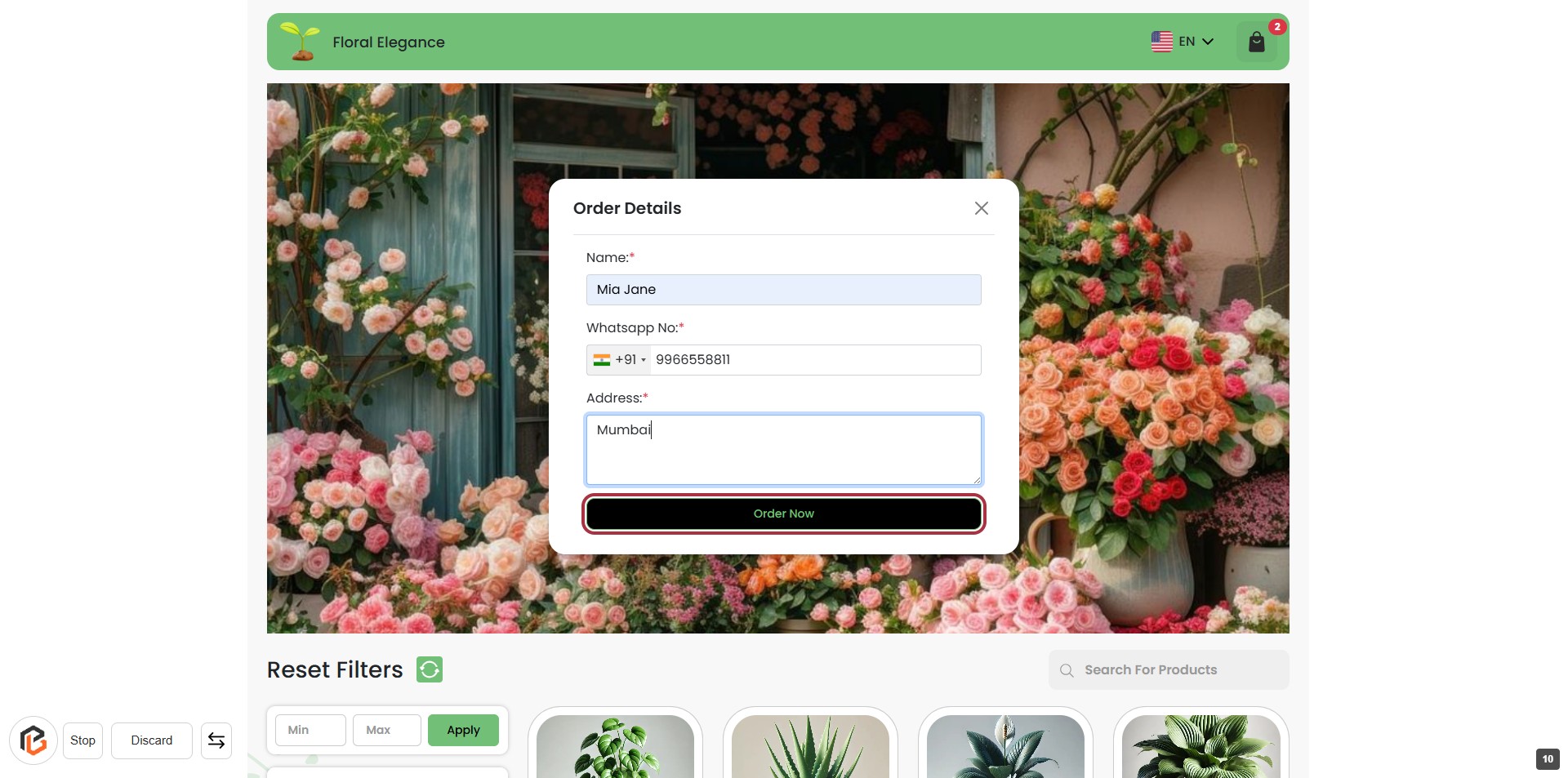
STEP 11: Click on "Order Now" to Complete Your Purchase
- Ensure all required fields are filled:
- Name (marked with *),
- Whatsapp No. (marked with *),
- Address (marked with *).
- Click the Order Now button to proceed with your order.
- Verify your details before clicking to avoid errors.
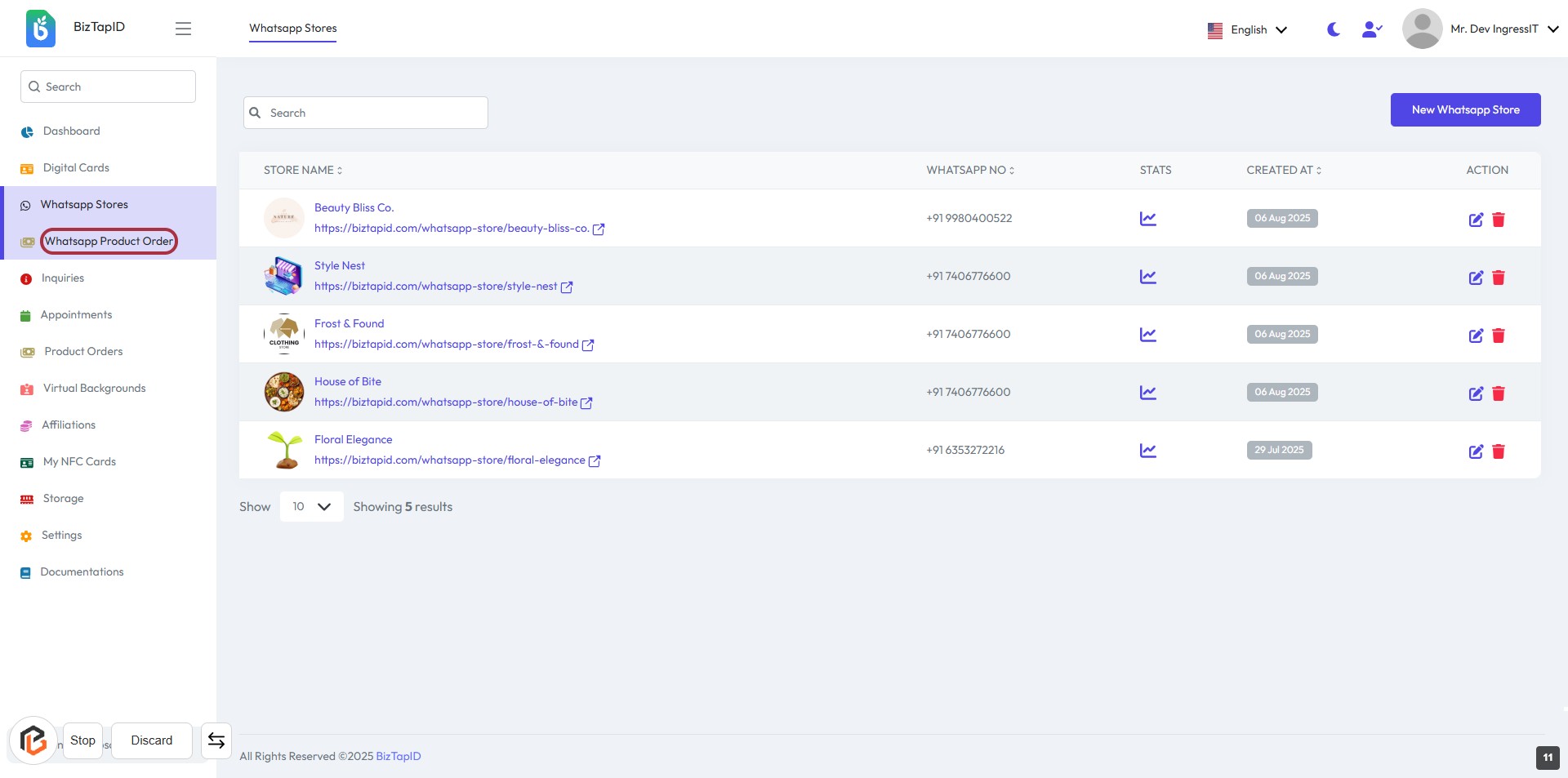
STEP 12: Click on "Whatsapp Product Order"
- Navigate to the "Whatsapp Stores" section.
- Click on the highlighted "Whatsapp Product Order" link.
- This will direct you to the relevant product order page.
- Ensure to check any additional options or details that may appear after clicking.
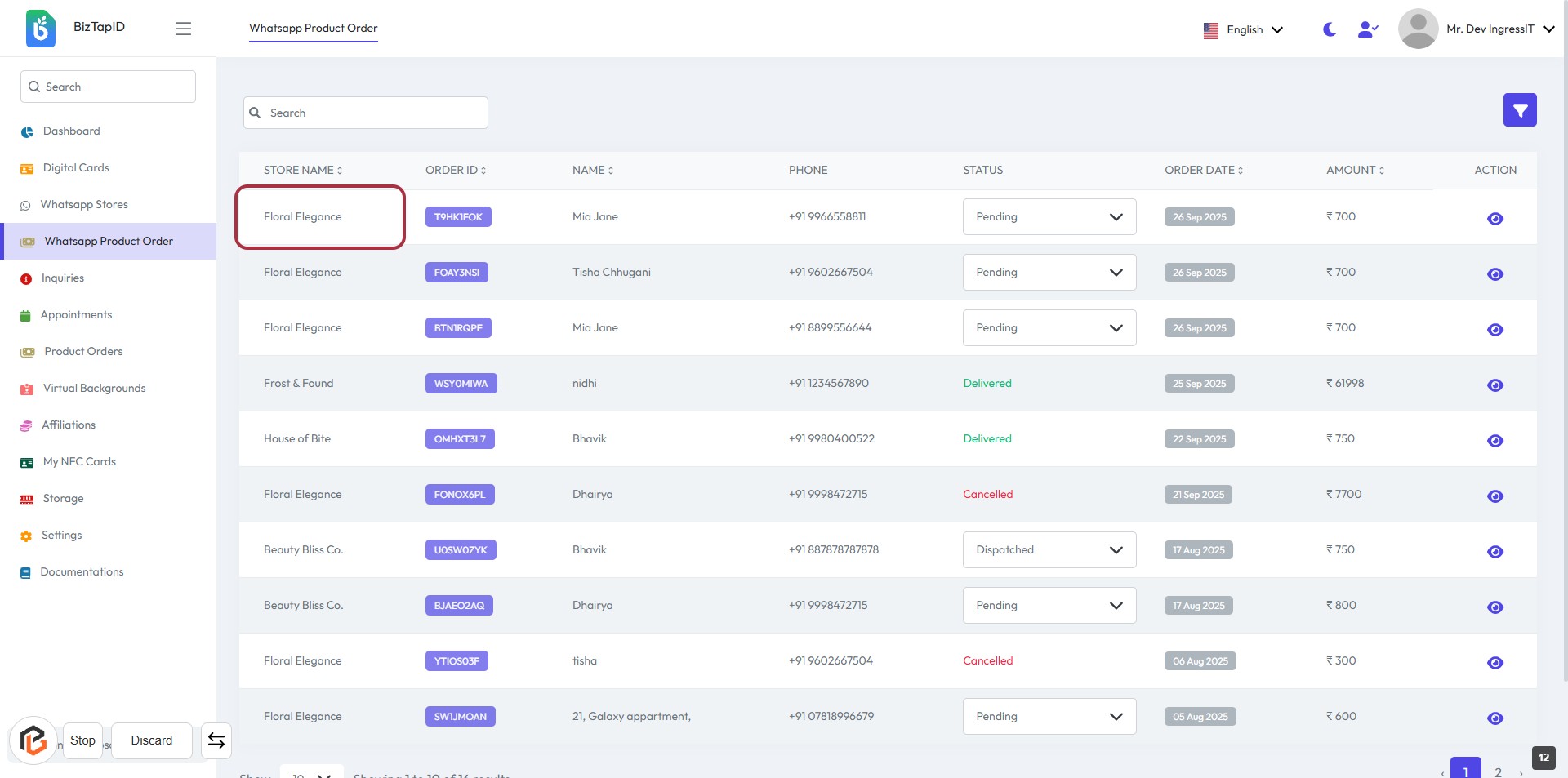
STEP 13: Click on "Floral Elegance" to View Order Details
- Locate the "Floral Elegance" entry in the order list.
- Click on the highlighted area to access detailed information about the order.
- Ensure you check the order ID, name, phone number, status, and order date for complete context.
- Proceed to click the "View" icon for further details.
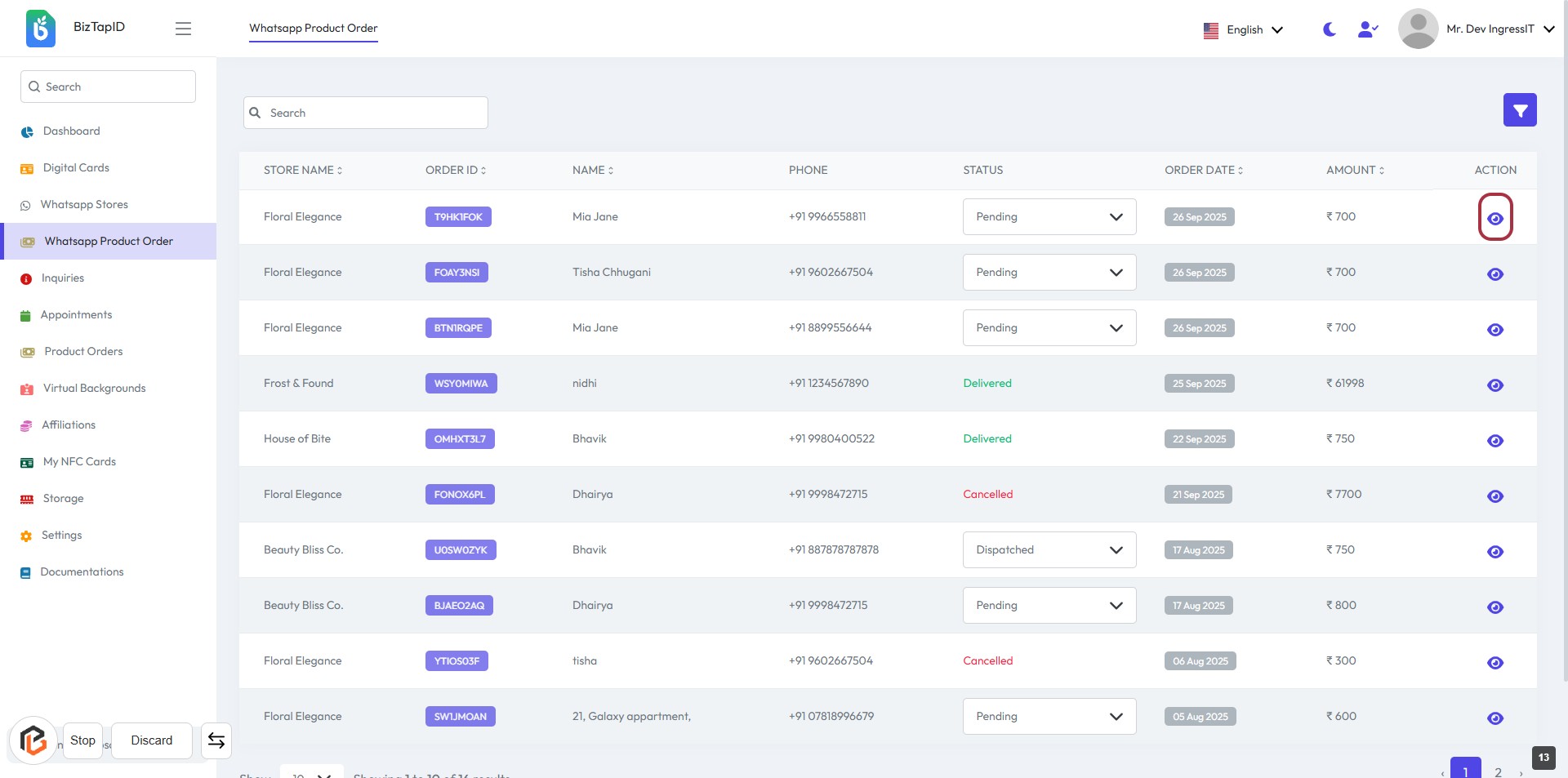
STEP 14: Click on "View" Icon to Access Order Details
- Locate the "View" icon in the ACTION column of the order table.
- Click on the icon to proceed to the order details.
- Ensure you have selected the correct order before clicking.
- This action will redirect you to the detailed view of the selected order.
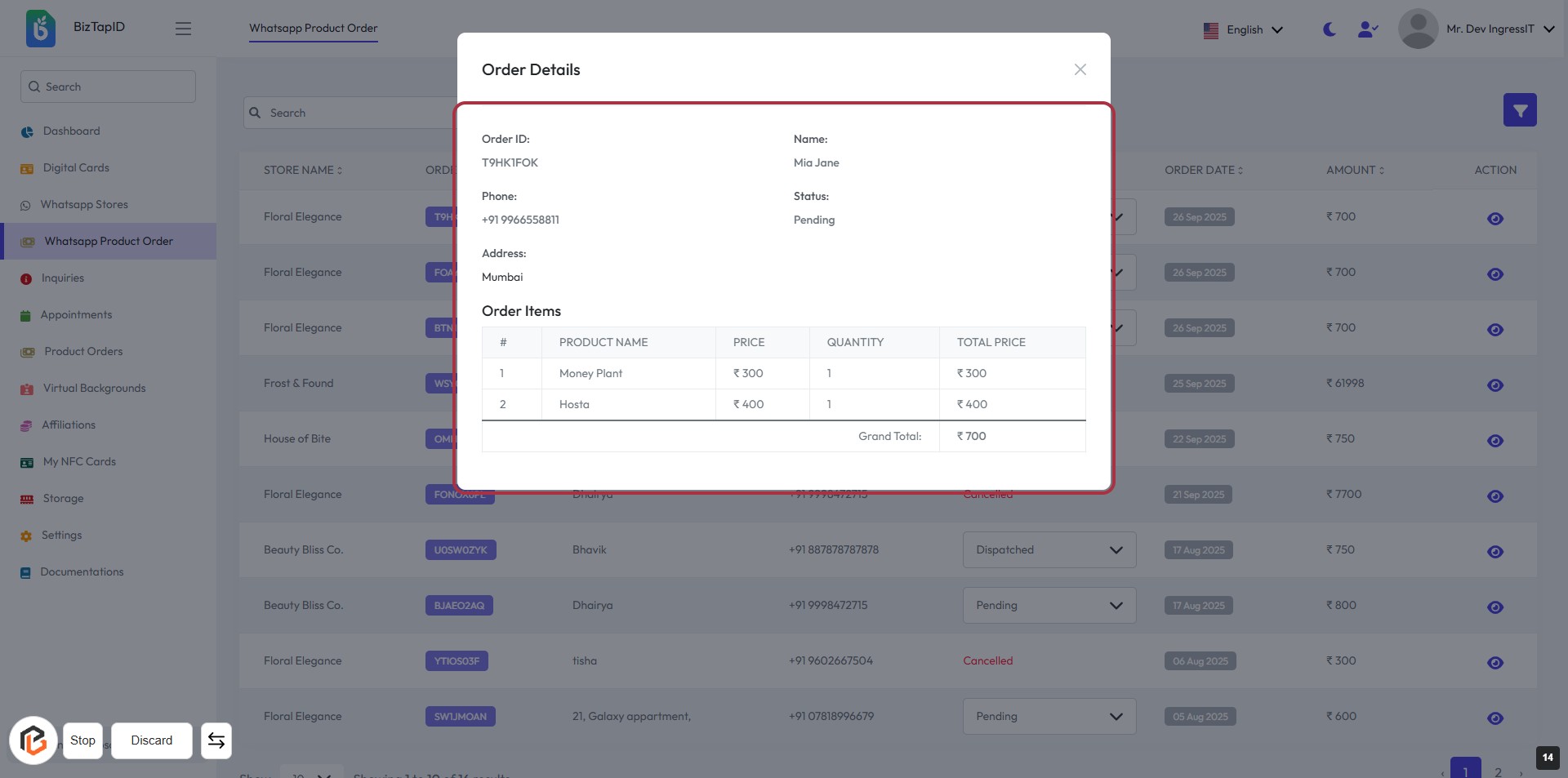
STEP 15: View Order Details
- Click on the highlighted area to access the "Order Details" modal.
- Review the following information:
- Order ID: Unique identifier for the order.
- Name: Customer's name.
- Phone: Customer's contact number.
- Status: Current status of the order.
- Address: Delivery address.
- Check the Order Items table for product details, including:
- Product Name
- Price
- Quantity
- Total Price
- Ensure all details are correct before proceeding with any further actions.