How to Access and Review Storage Metrics on the BizTapID Dashboard
2 mins read · Updated 01 Oct, 2025
STEP 1: Click on "Storage" in the Dashboard
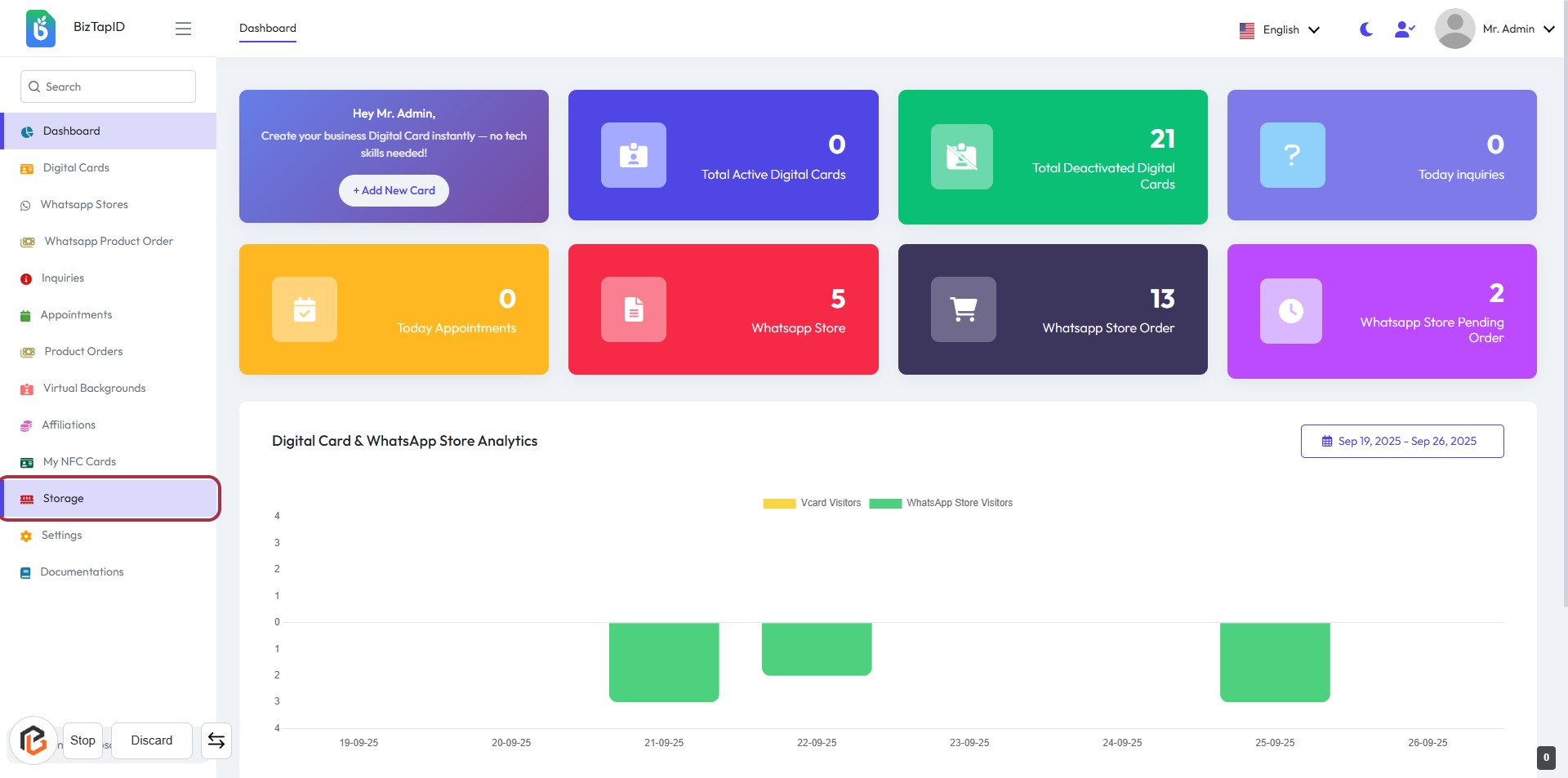
- Navigate to the BizTapID dashboard.
- Locate the "Storage" option in the sidebar menu.
- Click on the "Storage" link to access the storage section.
- Ensure you are ready to view the "Storage Overview" in the next step.
STEP 2: Click on "Storage Overview" to Access Storage Details
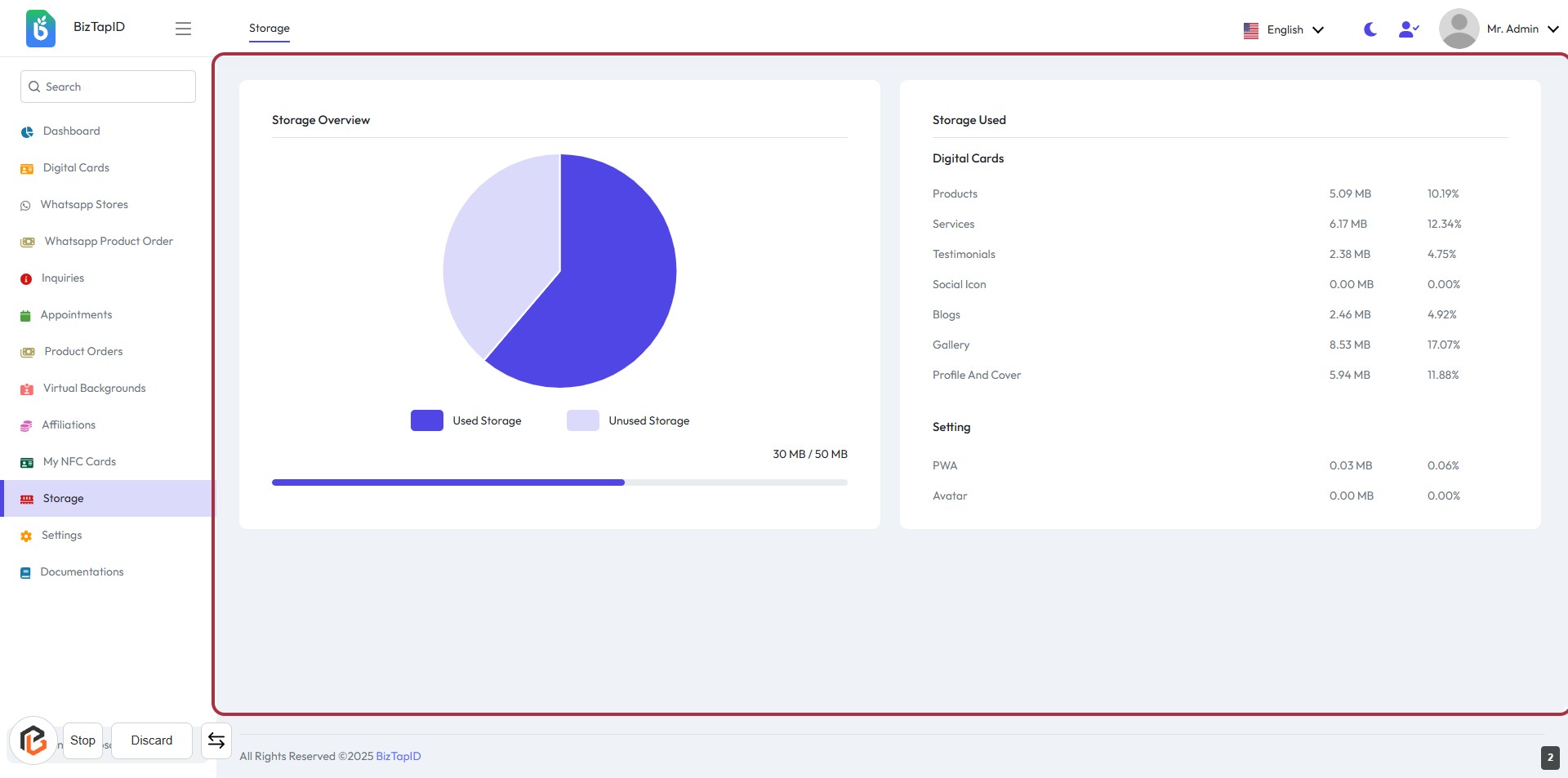
- Navigate to the "Storage Overview" section.
- Review the pie chart displaying used vs. unused storage.
- Check the "Storage Used" details for various digital cards.
- Observe the total storage capacity (30 MB / 50 MB).
- Ensure to note any important storage metrics for your records.