Step-by-Step Guide to Editing Your Terms & Conditions: Access, Edit, and Save Changes Effectively
3 mins read · Updated 01 Oct, 2025
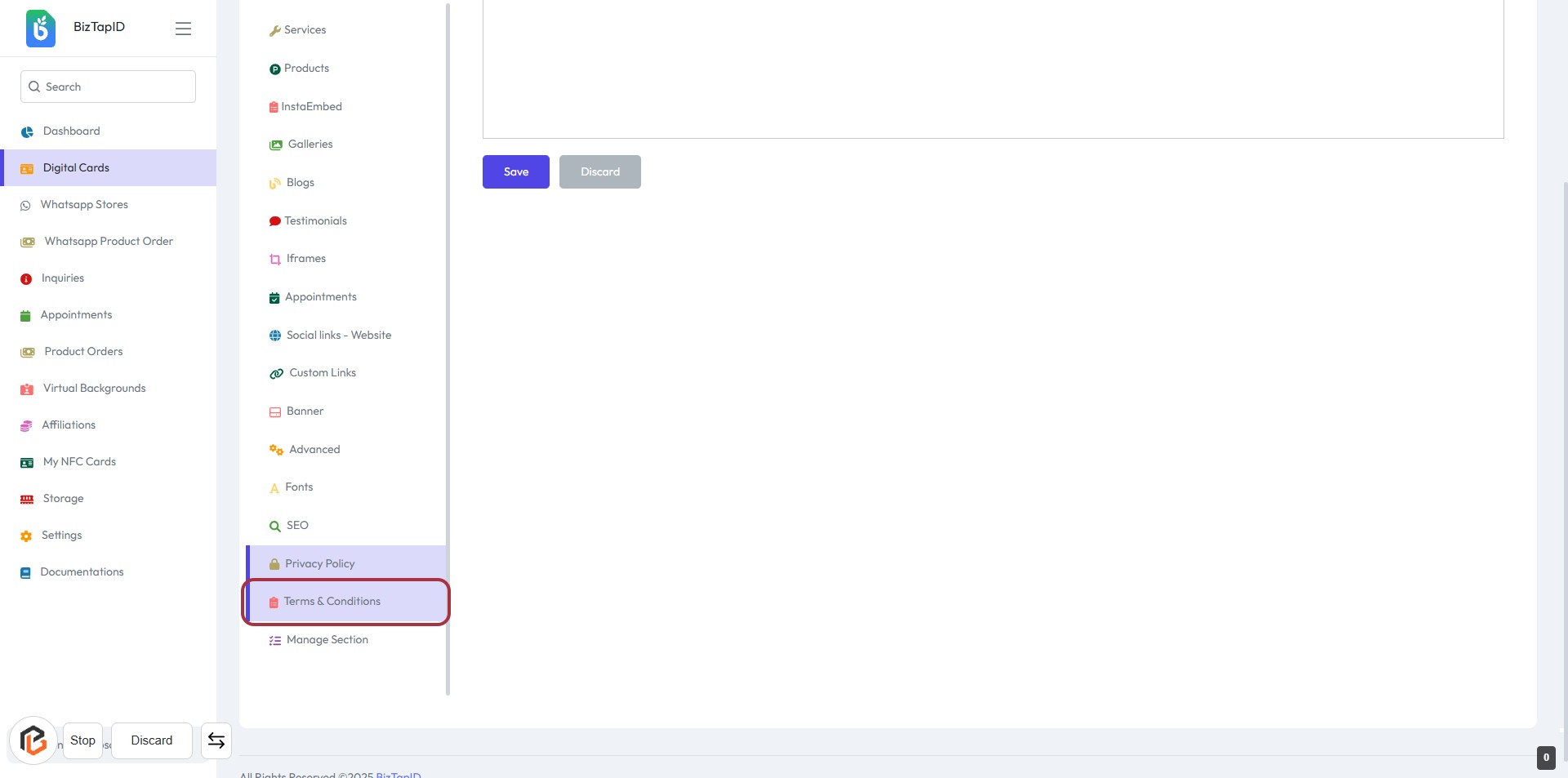
STEP 1: Click on "Terms & Conditions"
- Navigate to the sidebar menu on the left.
- Locate and click on the "Terms & Conditions" link highlighted in red.
- This action will direct you to the relevant section for further editing or viewing.
- Ensure you have the necessary permissions to access this section.
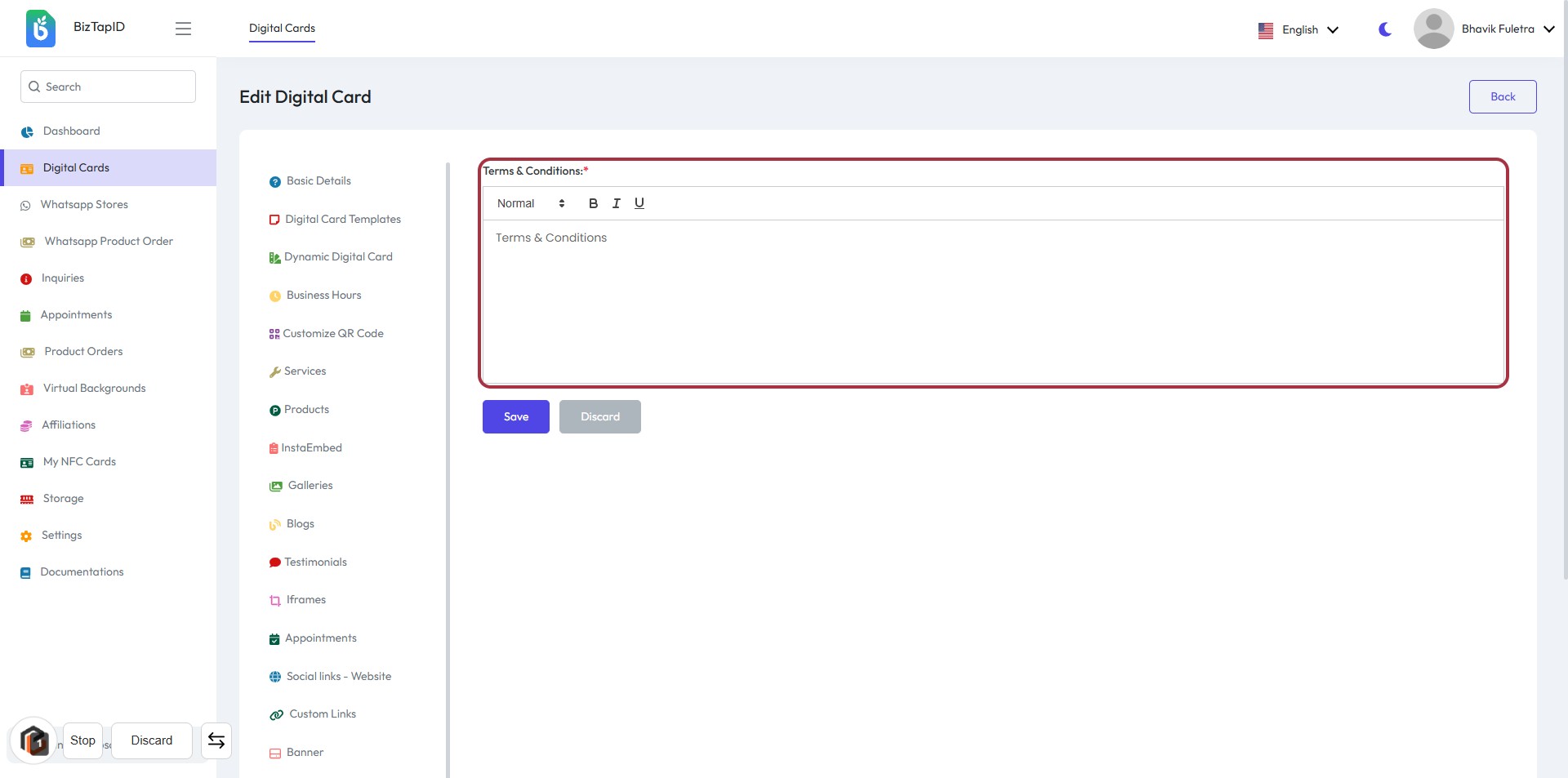
STEP 2: Click on "Terms & Conditions" to Edit
- Locate the "Terms & Conditions" section highlighted in red.
- Click on the area to activate the text input.
- Enter the necessary terms and conditions in the provided text area.
- Ensure to fill in all required fields marked with an asterisk (*).
- After completing, proceed to the next step by clicking the "Save" button.
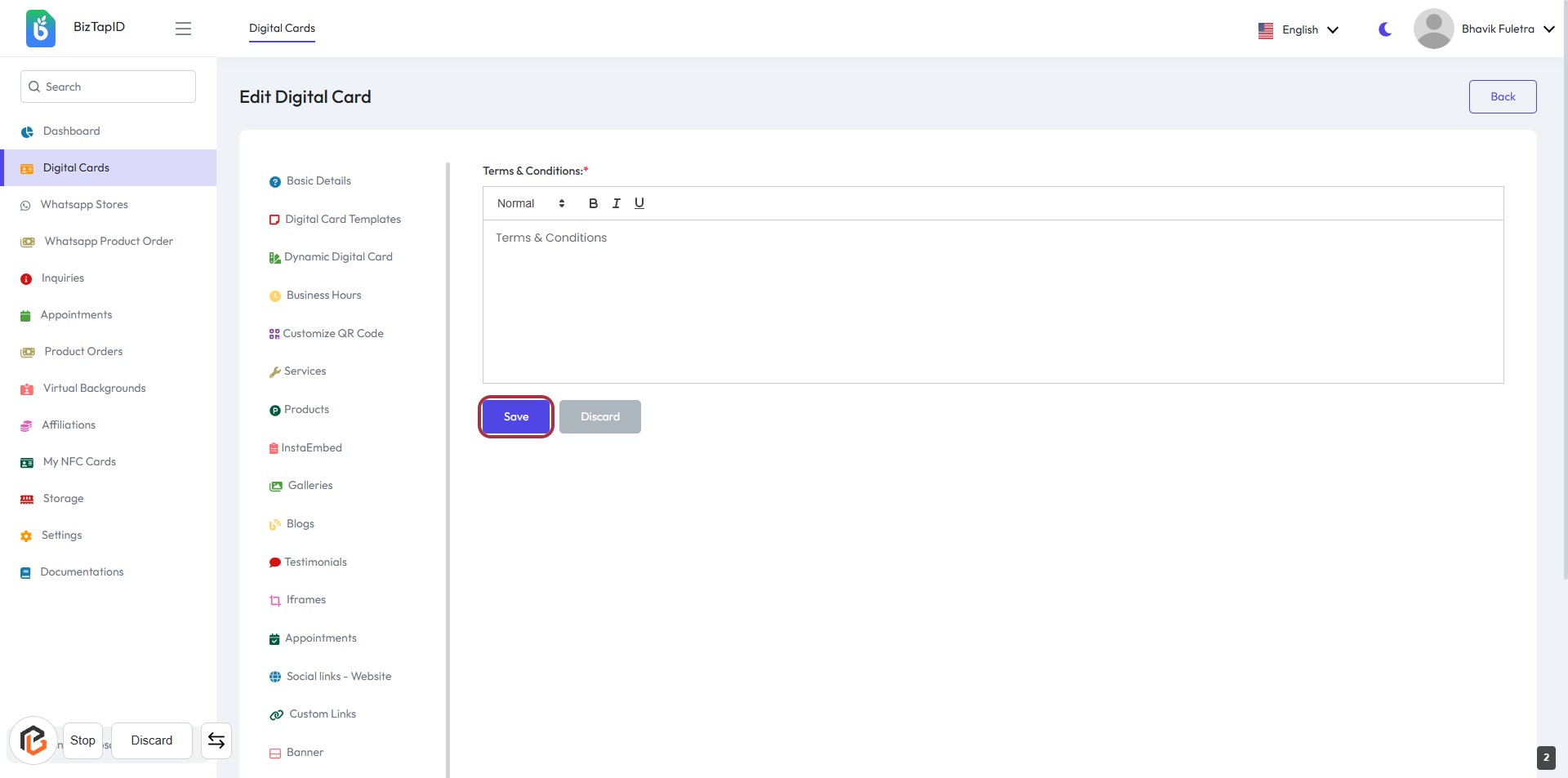
STEP 3: Click on "Save" to Confirm Changes
- Ensure all required fields are filled in the "Terms & Conditions" section.
- Review your entries for accuracy.
- Click the Save button located at the bottom right of the form to save your changes.
- If you wish to discard changes, click the Discard button instead.