Step-by-Step Guide to Adding Iframes: From Navigation to URL Entry
4 mins read · Updated 01 Oct, 2025
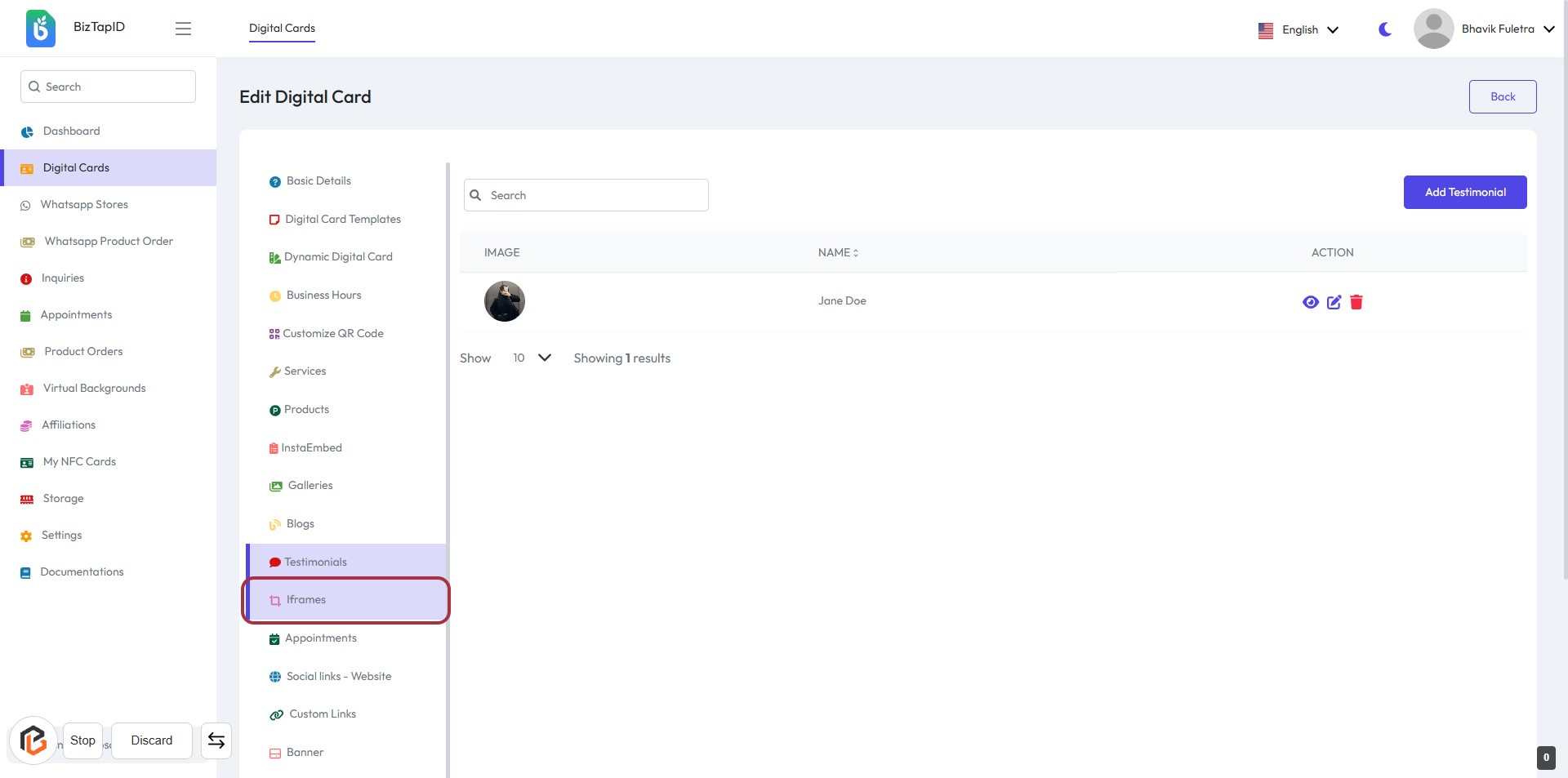
STEP 1: Click on "Iframes" to Access the Section
- Navigate to the sidebar menu on the left.
- Locate and click on the "Iframes" link highlighted in purple.
- This action will direct you to the Iframes section for further options.
- Ensure you are ready to proceed to the next step, which involves adding Iframes.
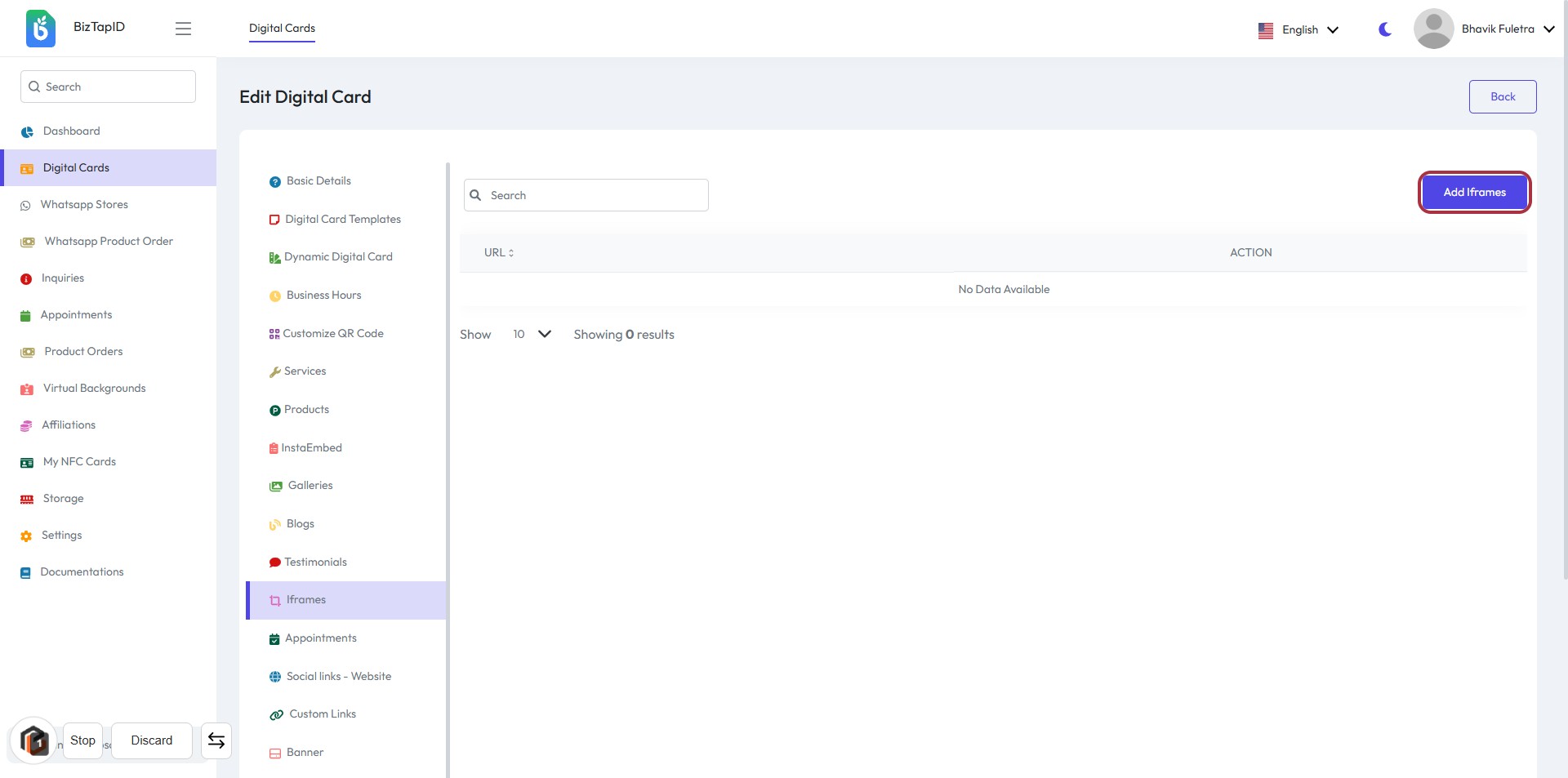
STEP 2: Click on "Add Iframes"
- Navigate to the "Iframes" section.
- Click on the "Add Iframes" button located on the right side of the screen.
- This action will allow you to proceed to the next step where you can enter the required URL.
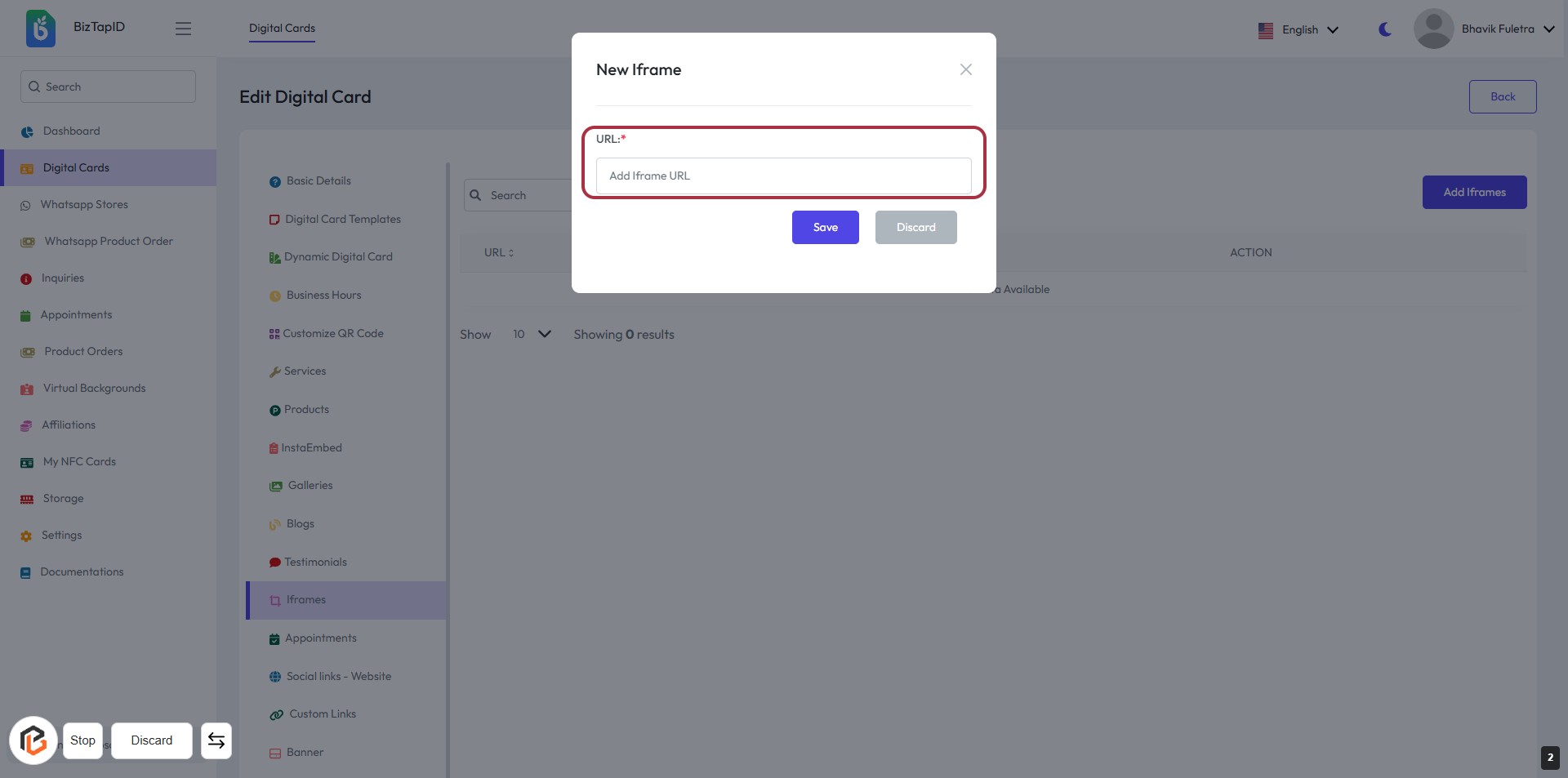
STEP 3: Enter URL for New Iframe
- Click on the highlighted area labeled "URL:*".
- Input the desired URL in the provided text box.
- Ensure the URL is correctly formatted.
- Proceed to the next step by clicking the "Save" button.
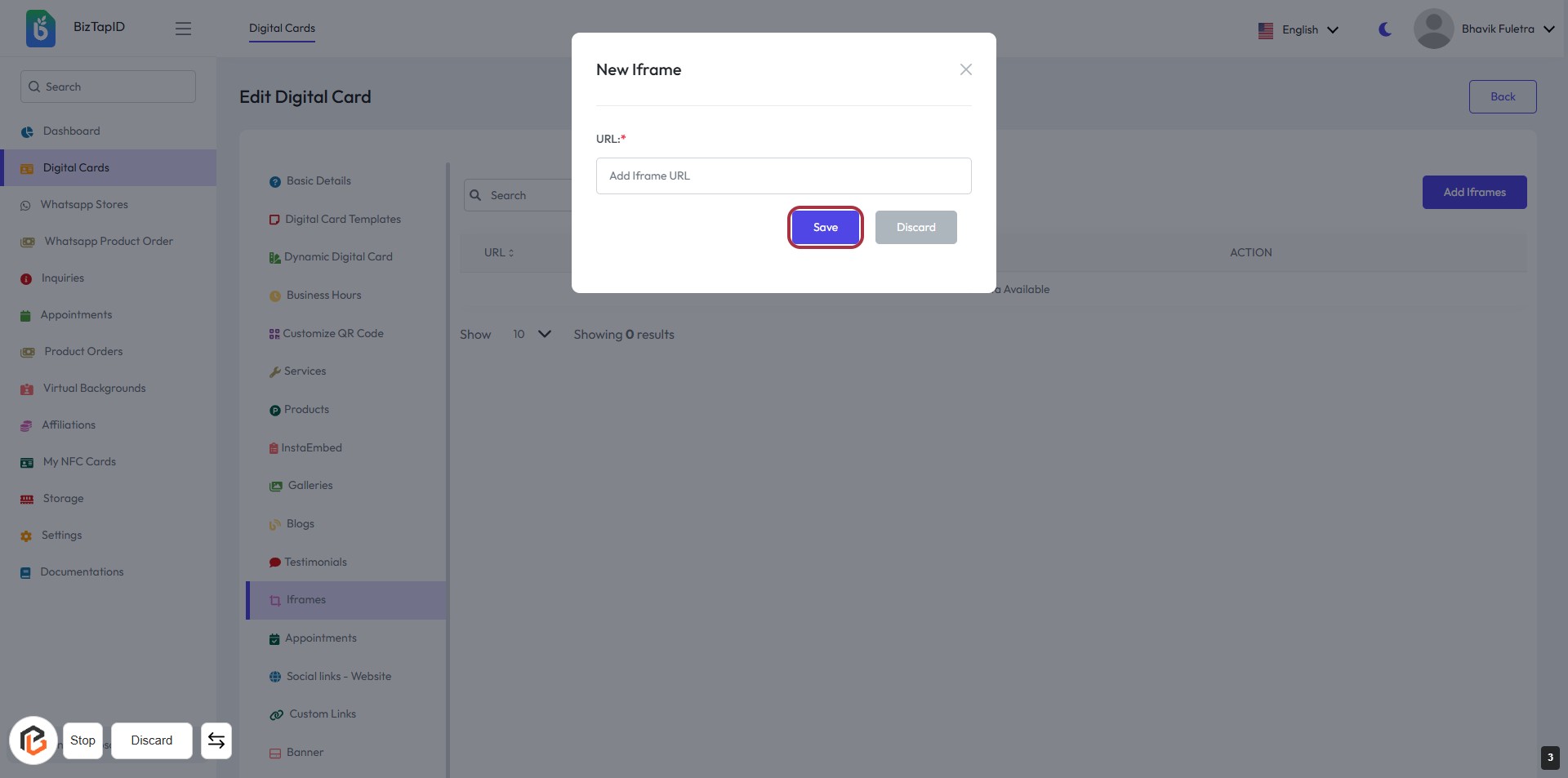
STEP 4: CLICK on "Save" Button
- Ensure the URL field is filled in the "New Iframe" dialog.
- Locate the "Save" button highlighted in blue.
- Click on the "Save" button to confirm your entry.
- If needed, you can also choose to "Discard" your changes.