Comprehensive Guide to Managing Digital Cards and Appointments on BizTapID
14 mins read · Updated 01 Oct, 2025
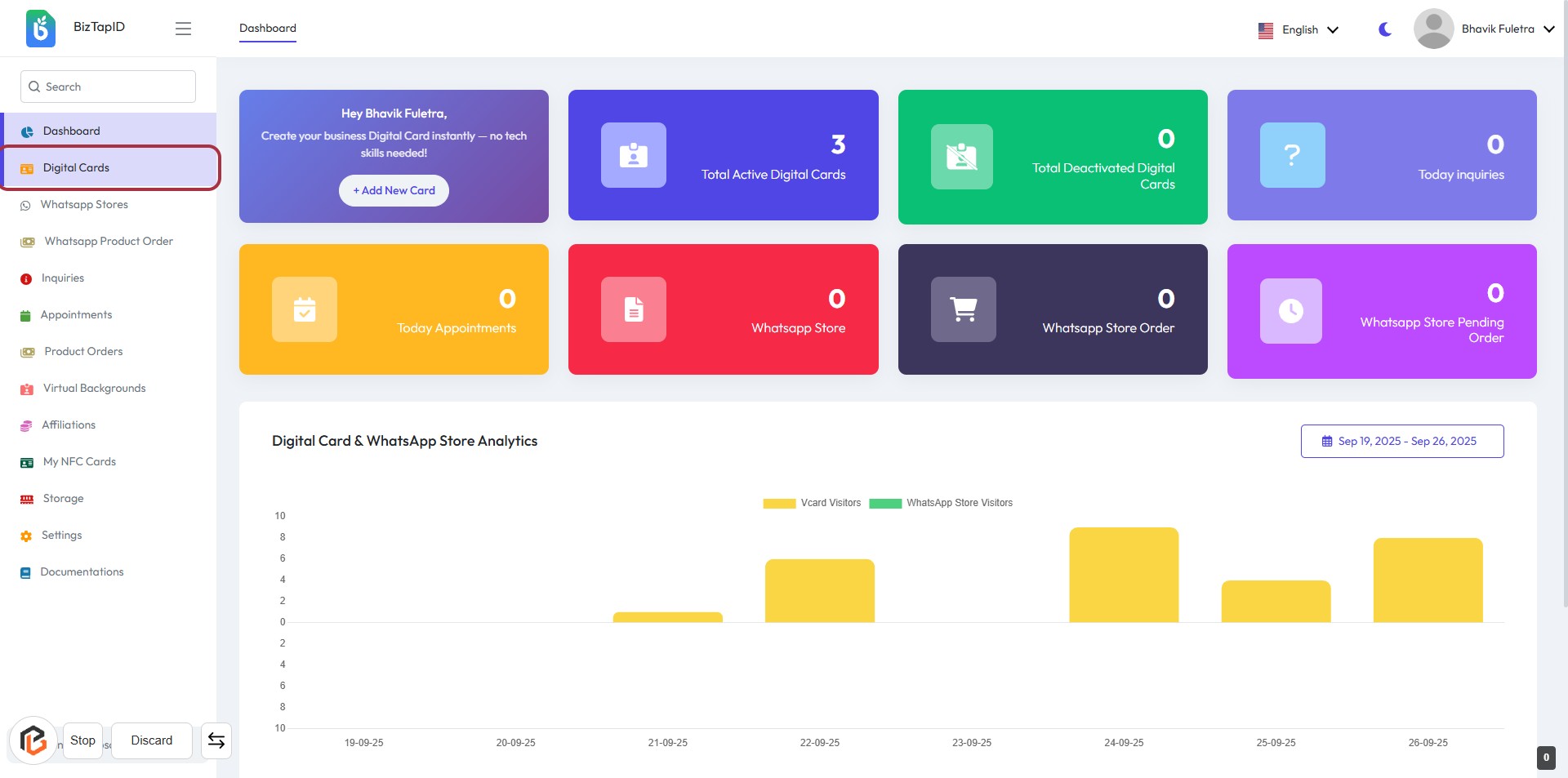
STEP 1: Click on "Digital Cards" to Access Digital Card Management
- Navigate to the BizTapID dashboard.
- Click on the Digital Cards link in the sidebar to access the Digital Card management section.
- This section allows you to manage your digital cards effectively.
- Look for additional options and analytics related to your digital cards on the page.
STEP 2: Click on "Preview URL" to Access Digital Card Link
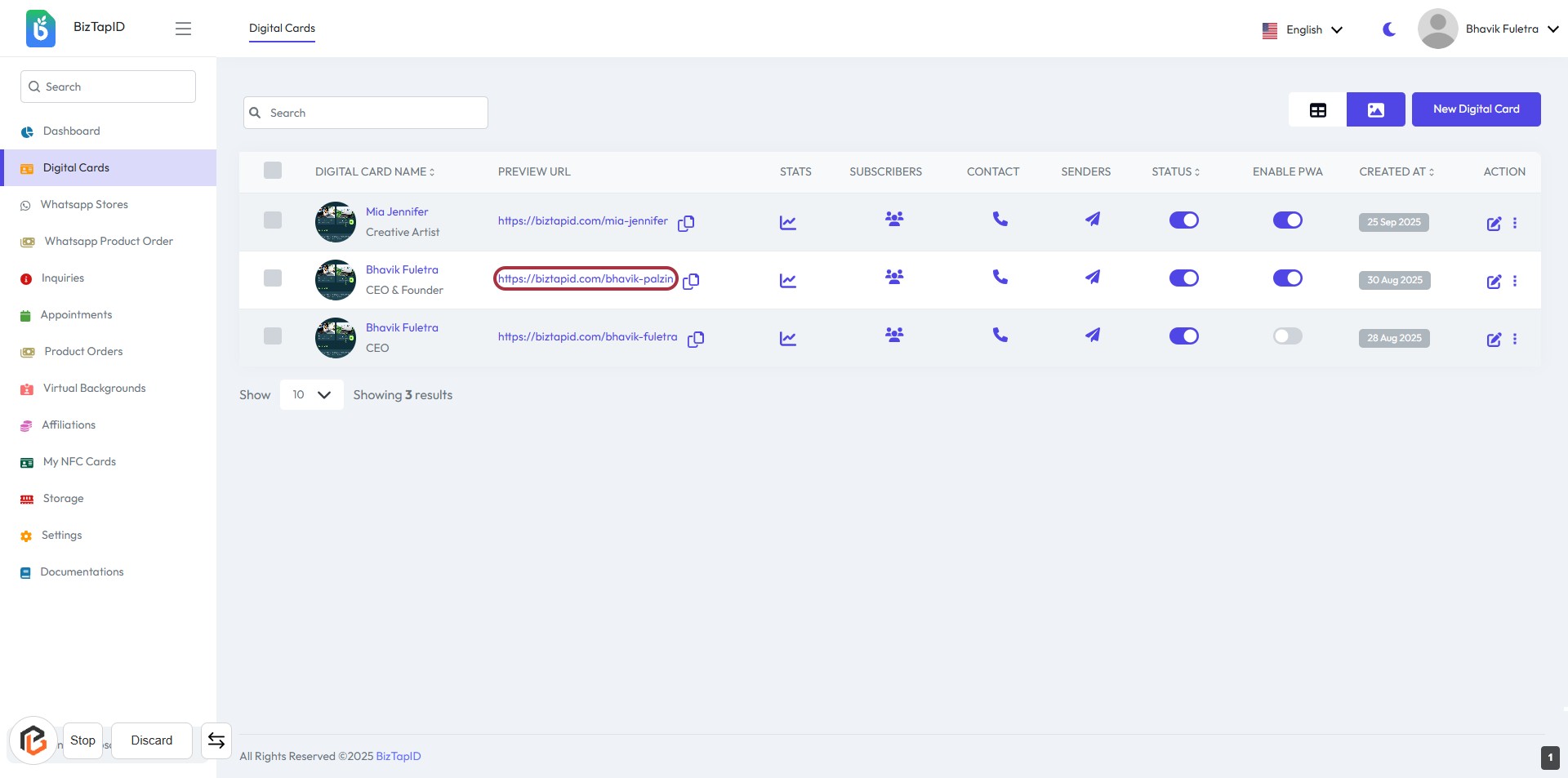
- Locate the "Preview URL" section in the Digital Card Management table.
- Click on the highlighted link:
https://biztapid.com/bhavik-palzin. - This action will open the digital card in a new tab for review.
- Ensure you have the correct digital card selected before clicking.
STEP 3: Select Date for Appointment
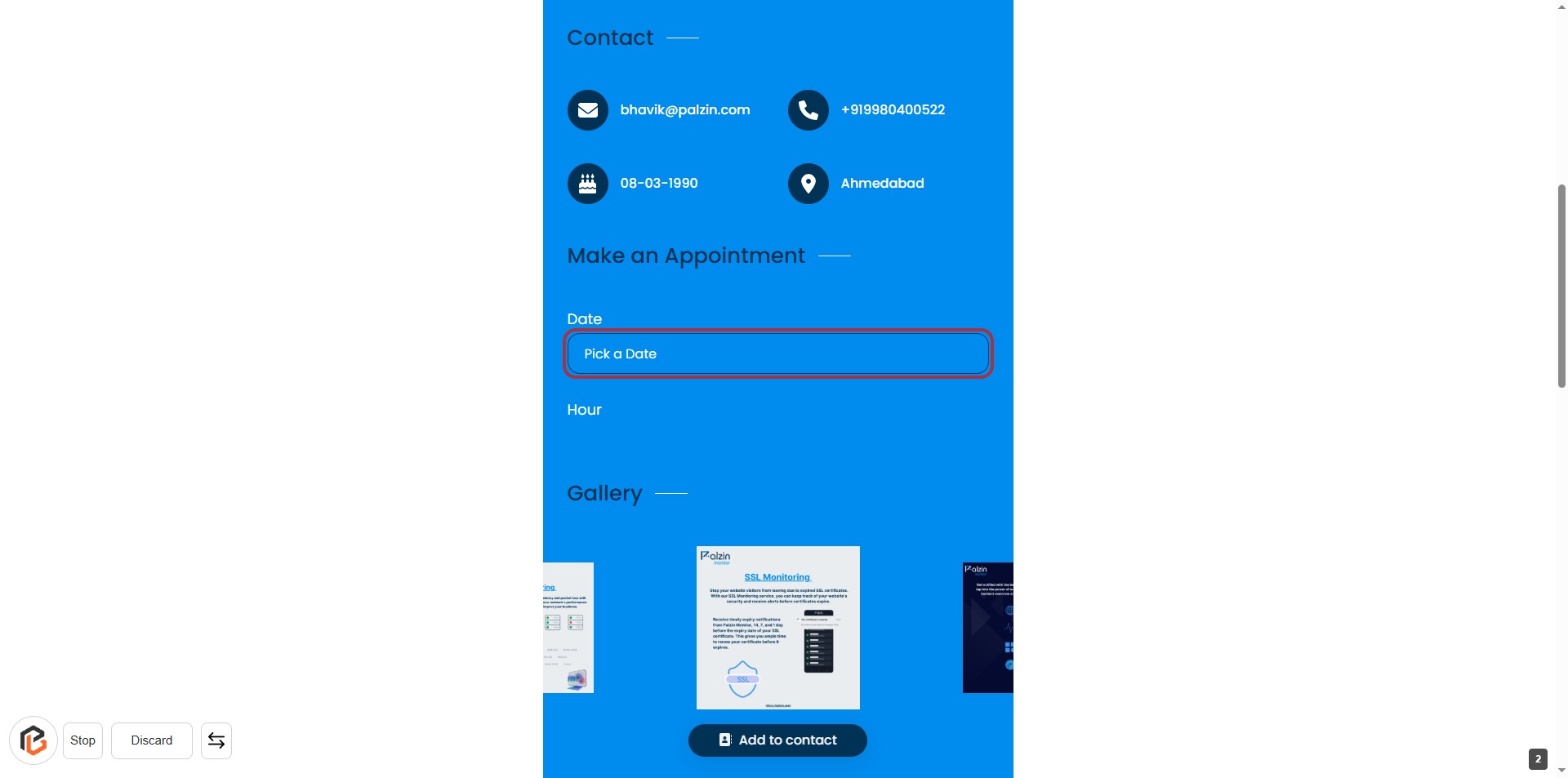
- Click on the "Pick a Date" input field in the "Make an Appointment" section.
- A date picker will appear; choose your desired appointment date.
- Ensure the date is correctly selected before proceeding to the next step.
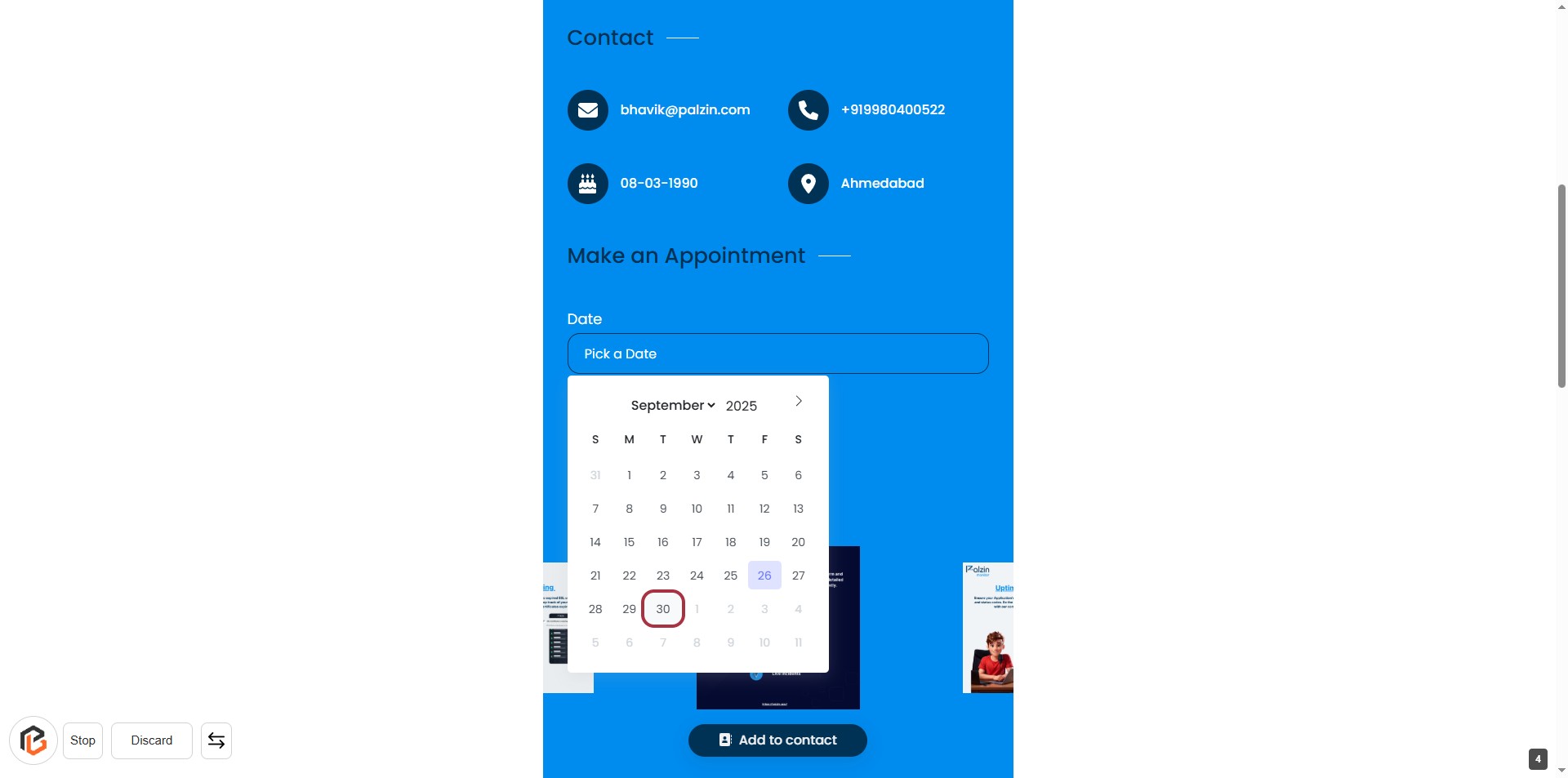
STEP 4: Select Appointment Date
- Click on the highlighted date (30) in the calendar.
- Ensure the date is correctly displayed in the "Pick a Date" field.
- Review any additional required fields marked with an asterisk (*).
- Proceed to the next step to select the appointment timing.
STEP 5: Select Appointment Timing
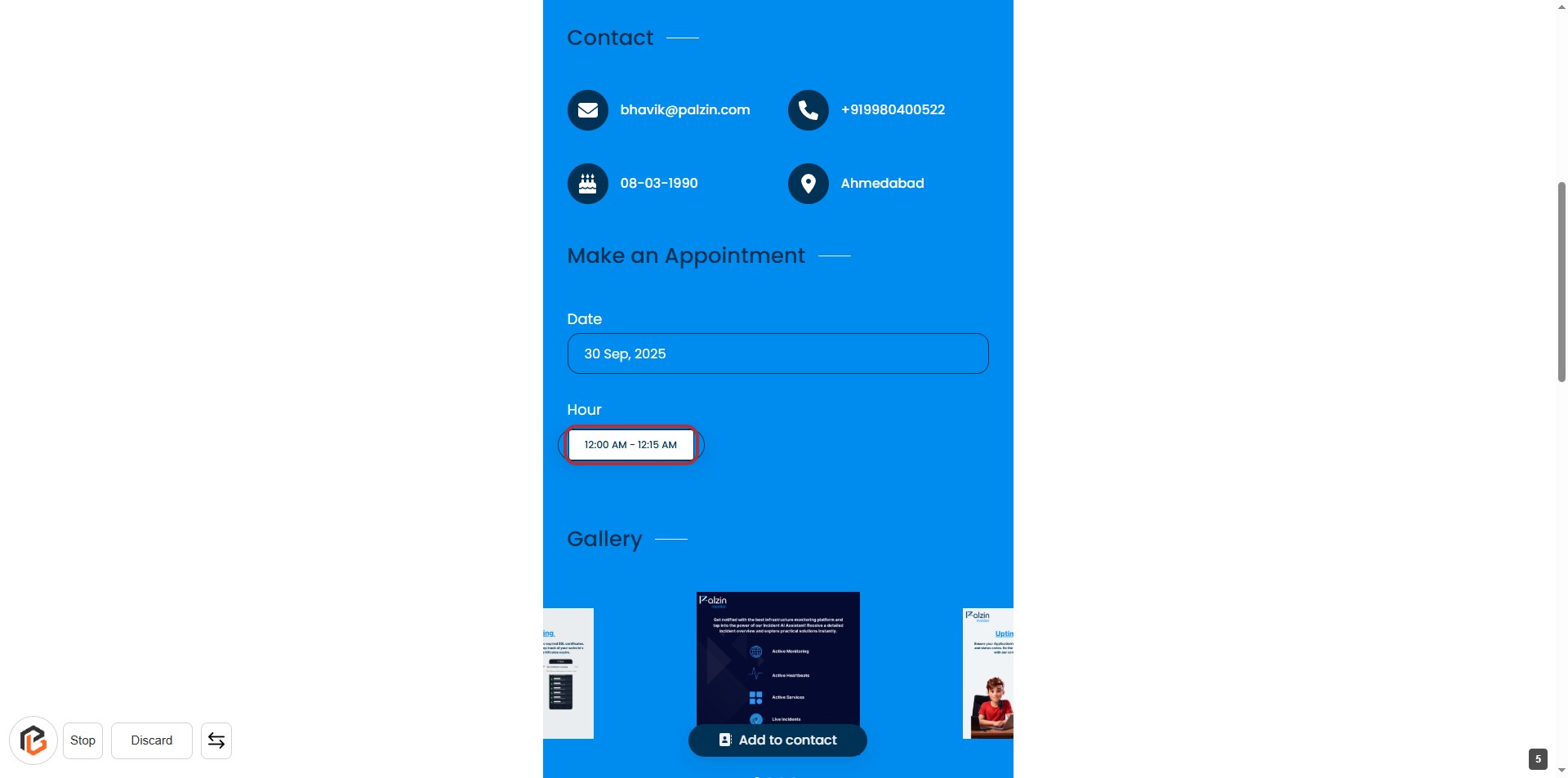
- Click on the highlighted time slot: 12:00 AM - 12:15 AM.
- Ensure the selected time is correct for your appointment.
- Review other required fields, such as the appointment date.
- Proceed to the next step by clicking on "Make an Appointment".
STEP 6: Click on "Make an Appointment"
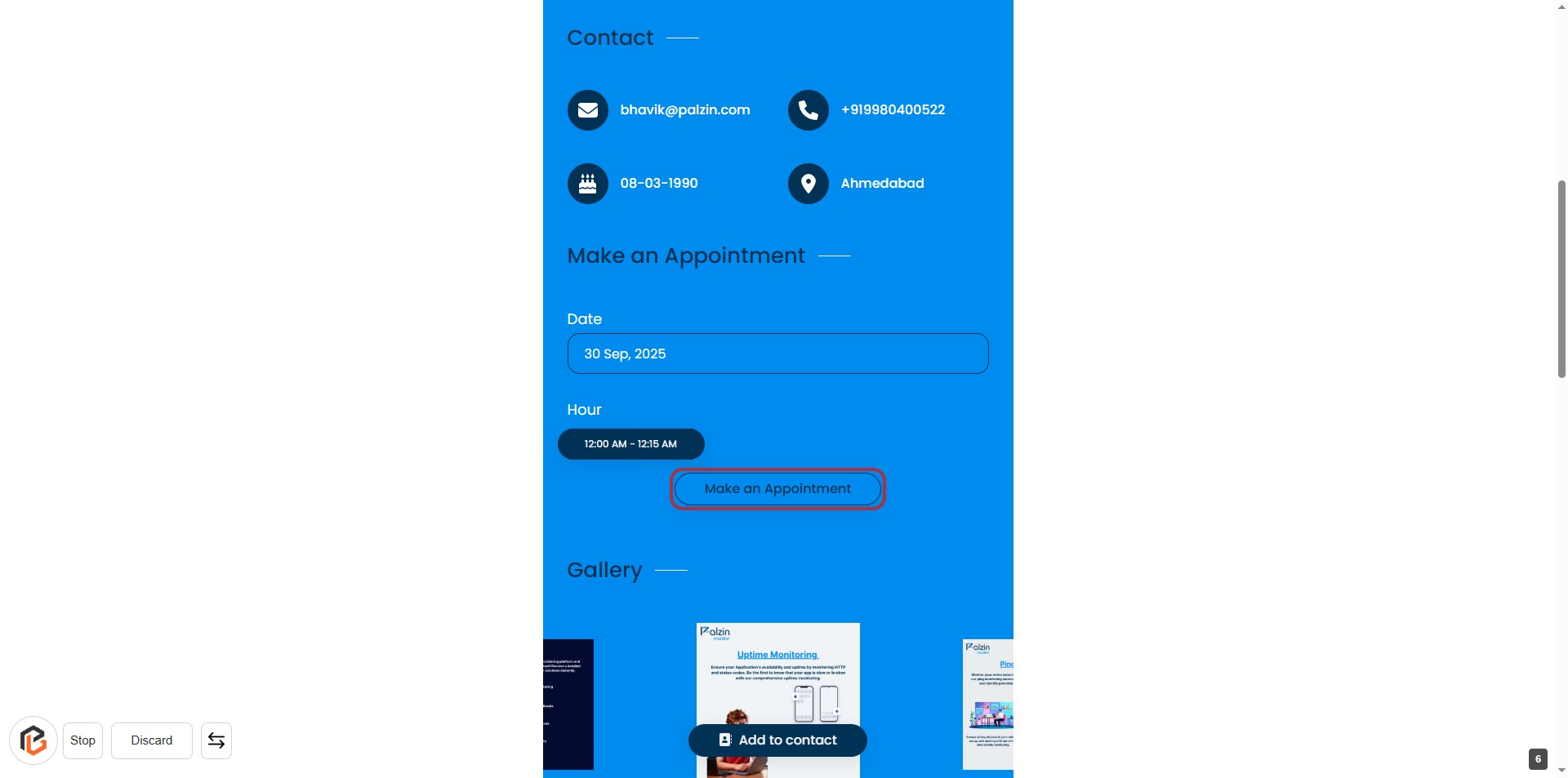
- Ensure you have selected the desired date and hour for your appointment.
- Click the "Make an Appointment" button to proceed.
- Verify that all required fields are filled out before clicking.
- After clicking, you will be directed to the next step to enter your name.
STEP 7: Enter Name for Appointment
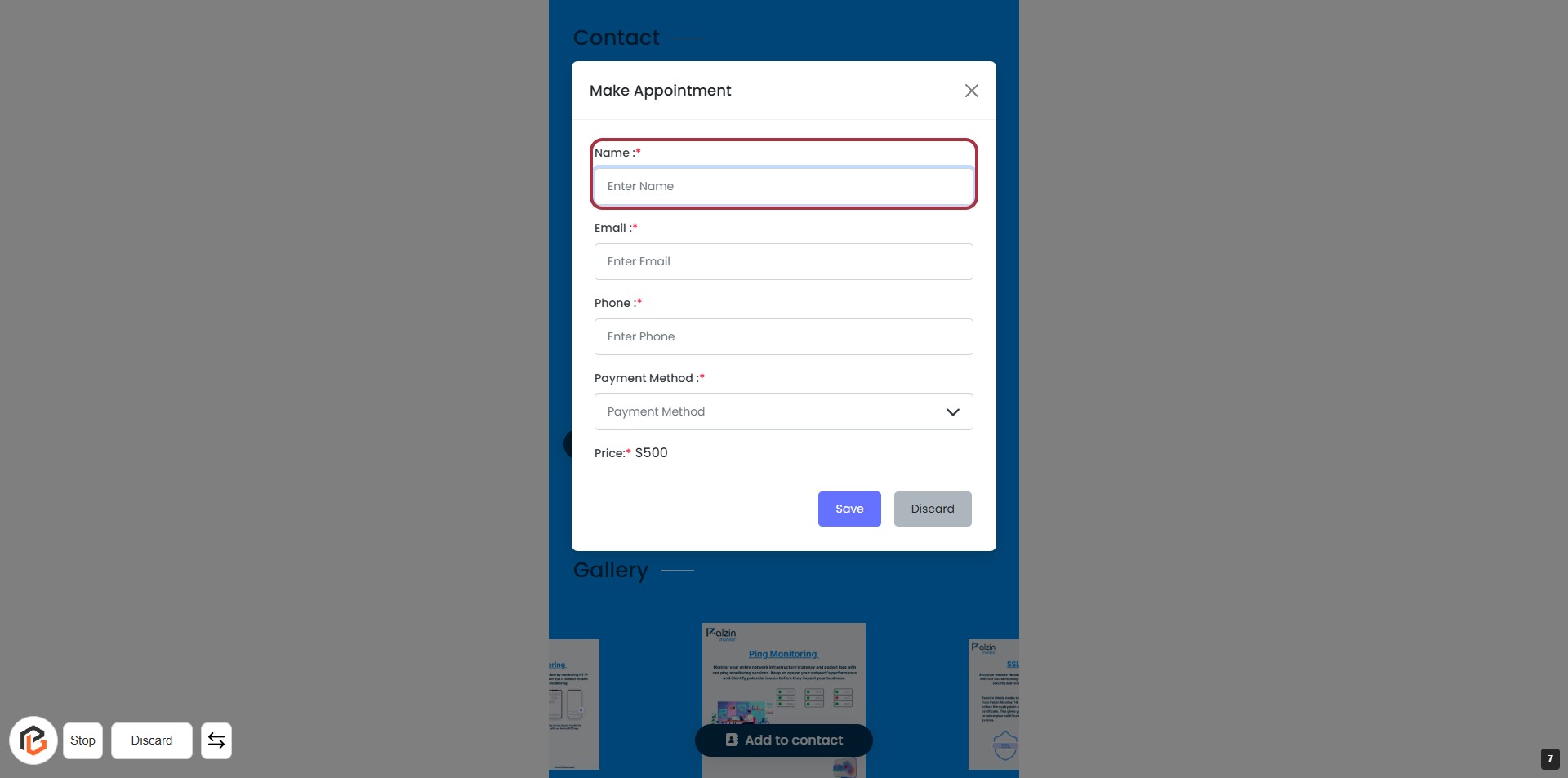
- Click on the "Name :" field in the appointment form.
- Input your full name as required (indicated by the asterisk).
- Ensure the name is accurate for appointment confirmation.
- Proceed to the next field by clicking or tabbing to "Email".
STEP 8: Enter Email Address for Appointment
- Click on the "Email" field in the appointment form.
- Ensure to enter a valid email address as it is marked with an asterisk (*), indicating it is required.
- Review other fields: Name, Phone, Payment Method, and Price, ensuring all required fields are filled.
- Proceed to the next step by entering your phone number.
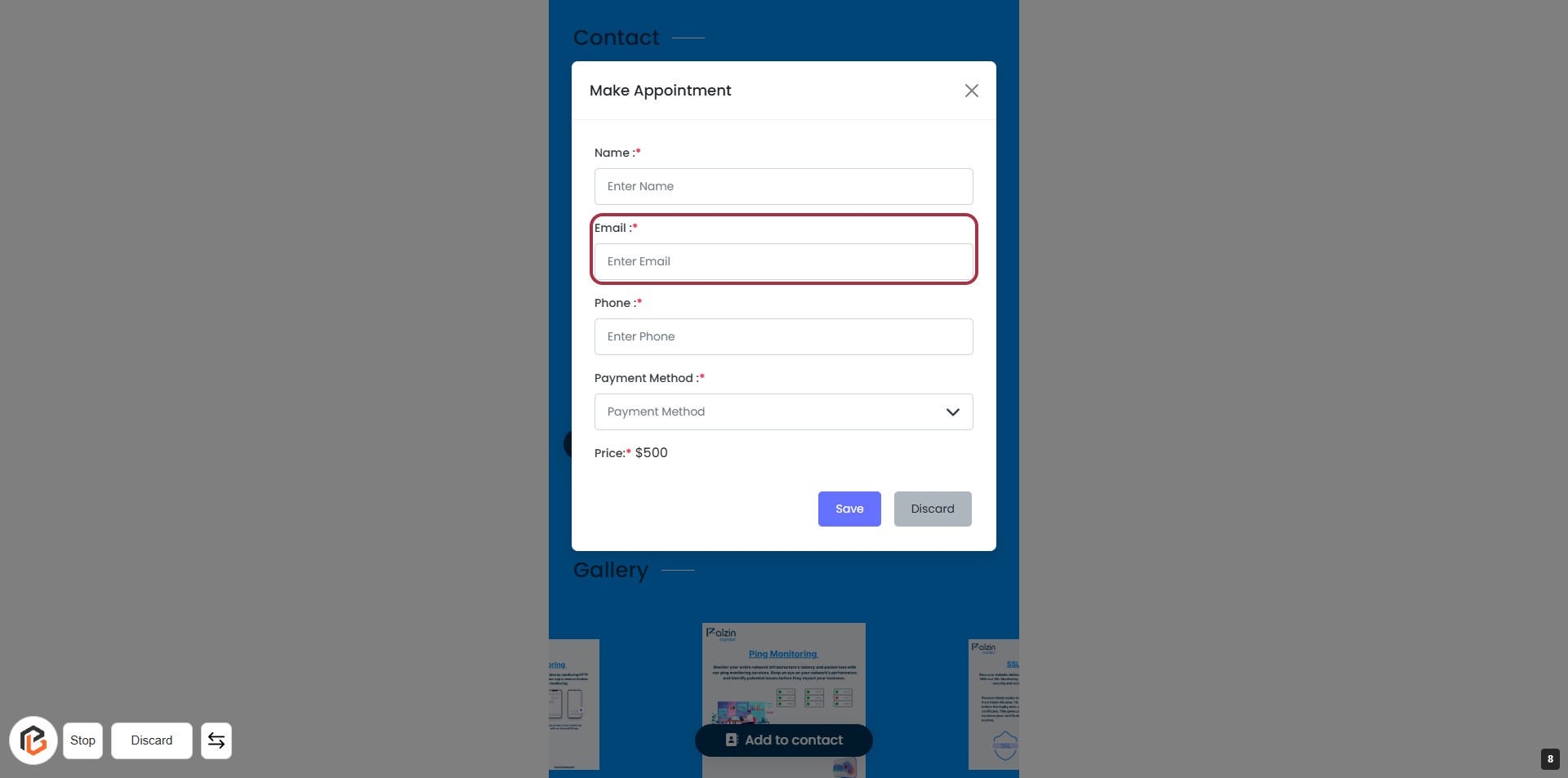
STEP 9: Enter Phone Number for Appointment
- Click on the "Phone :" field in the appointment form.
- Enter your phone number in the provided space.
- Ensure that the phone number is accurate, as it may be used for appointment confirmations.
- Look for any required fields marked with an asterisk (*).
- Proceed to the next step by selecting your payment method.
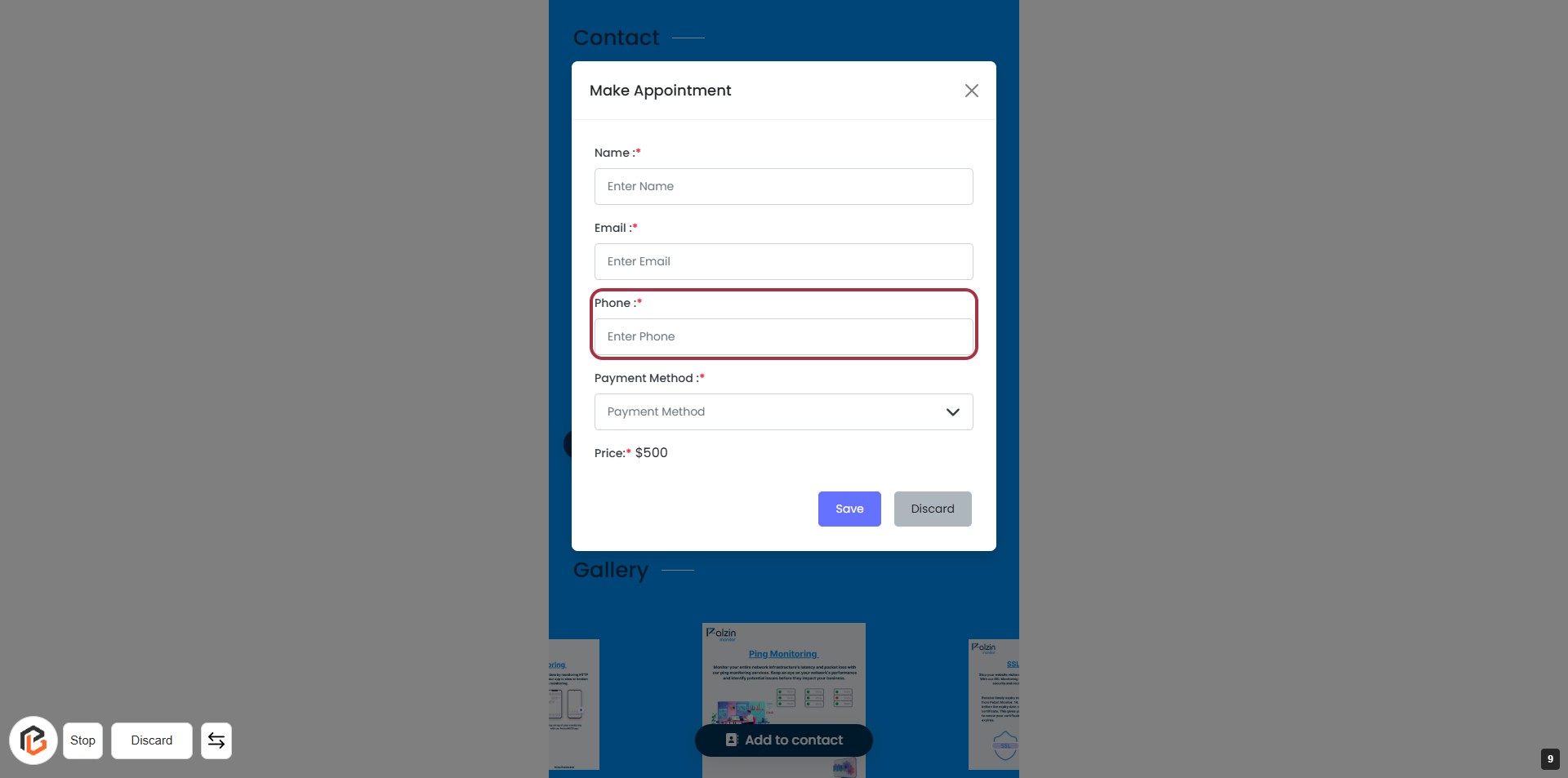
STEP 10: Select Payment Method
- Click on the highlighted option "Manually" in the Payment Method dropdown.
- Ensure all required fields (Name, Email, Phone) are filled out before proceeding.
- Review your selections to confirm accuracy.
- After selecting the payment method, continue to the next step by clicking the "Save" button.
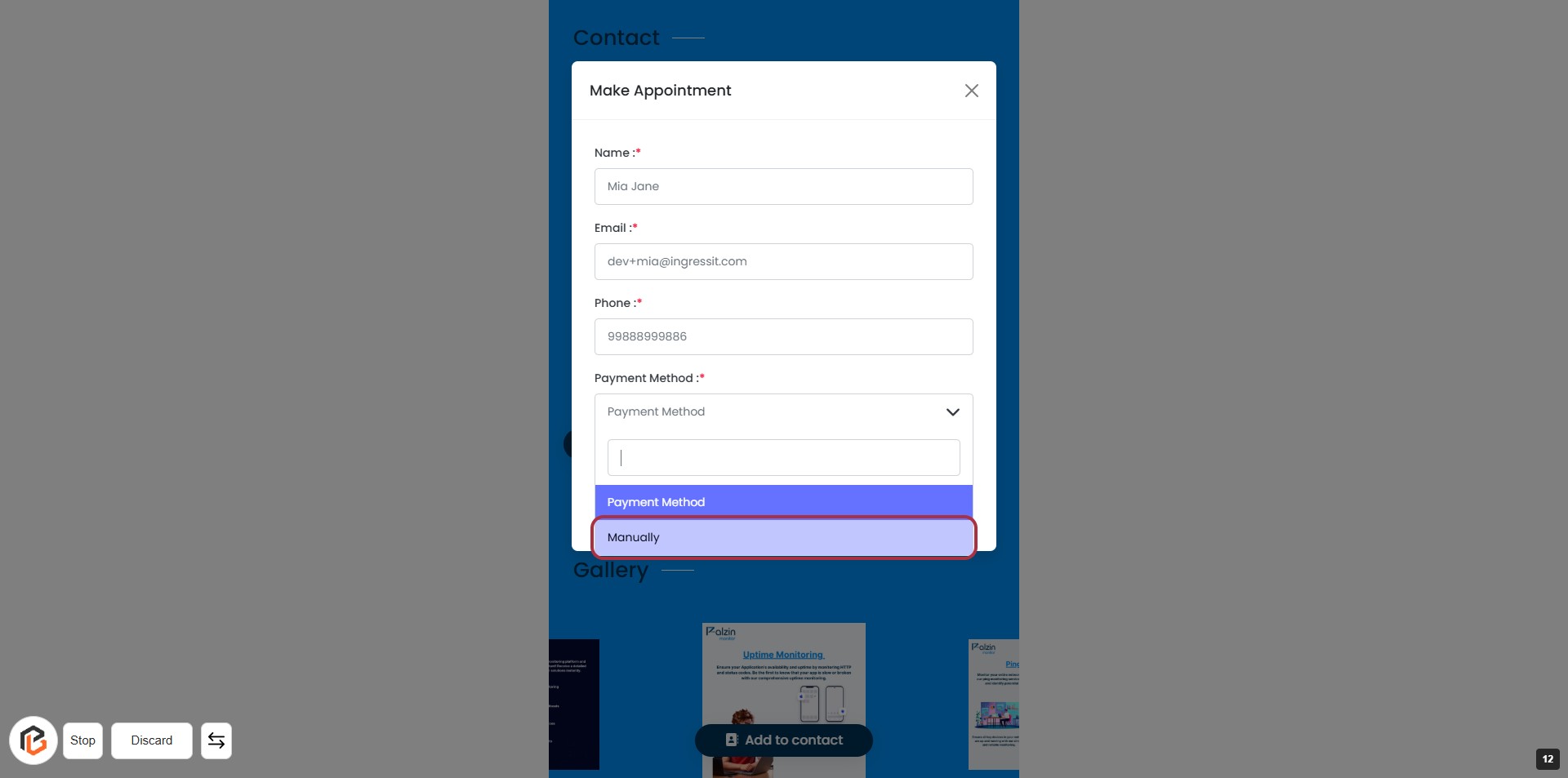
STEP 11: Click on "Save" Button to Confirm Appointment
- Ensure all required fields are filled: Name, Email, Phone, Payment Method, and Price (marked with *).
- Review your entries for accuracy.
- Click the "Save" button to confirm your appointment.
- Proceed to the next step by navigating to the Profile Dashboard and selecting "Appointments."
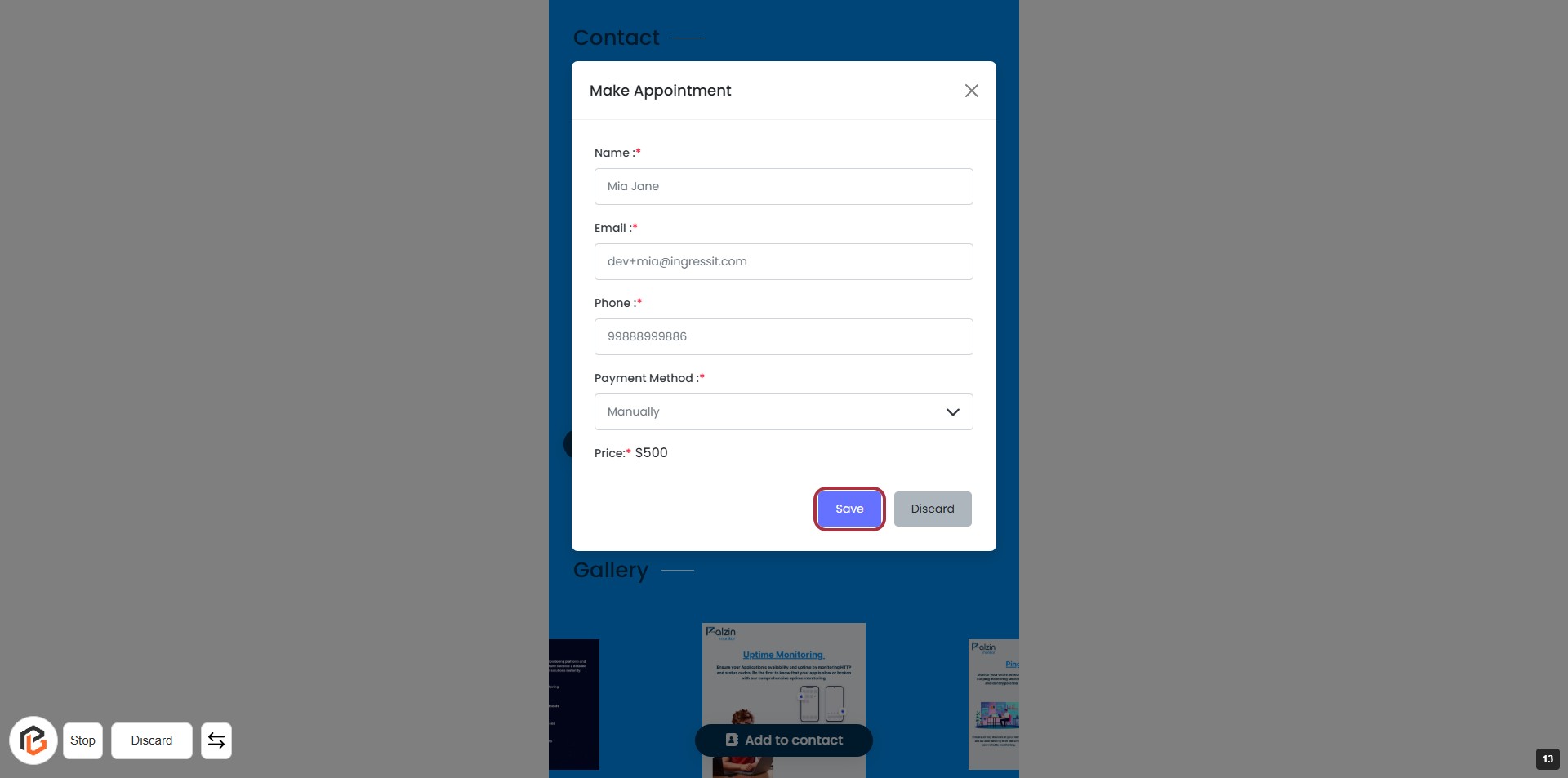
STEP 12: Click on "Appointments" in the Profile Dashboard
- Navigate to the Profile Dashboard.
- Locate the "Appointments" link on the sidebar.
- Click on the "Appointments" link to access the appointments section.
- Ensure you have completed the previous step by saving your appointment details.
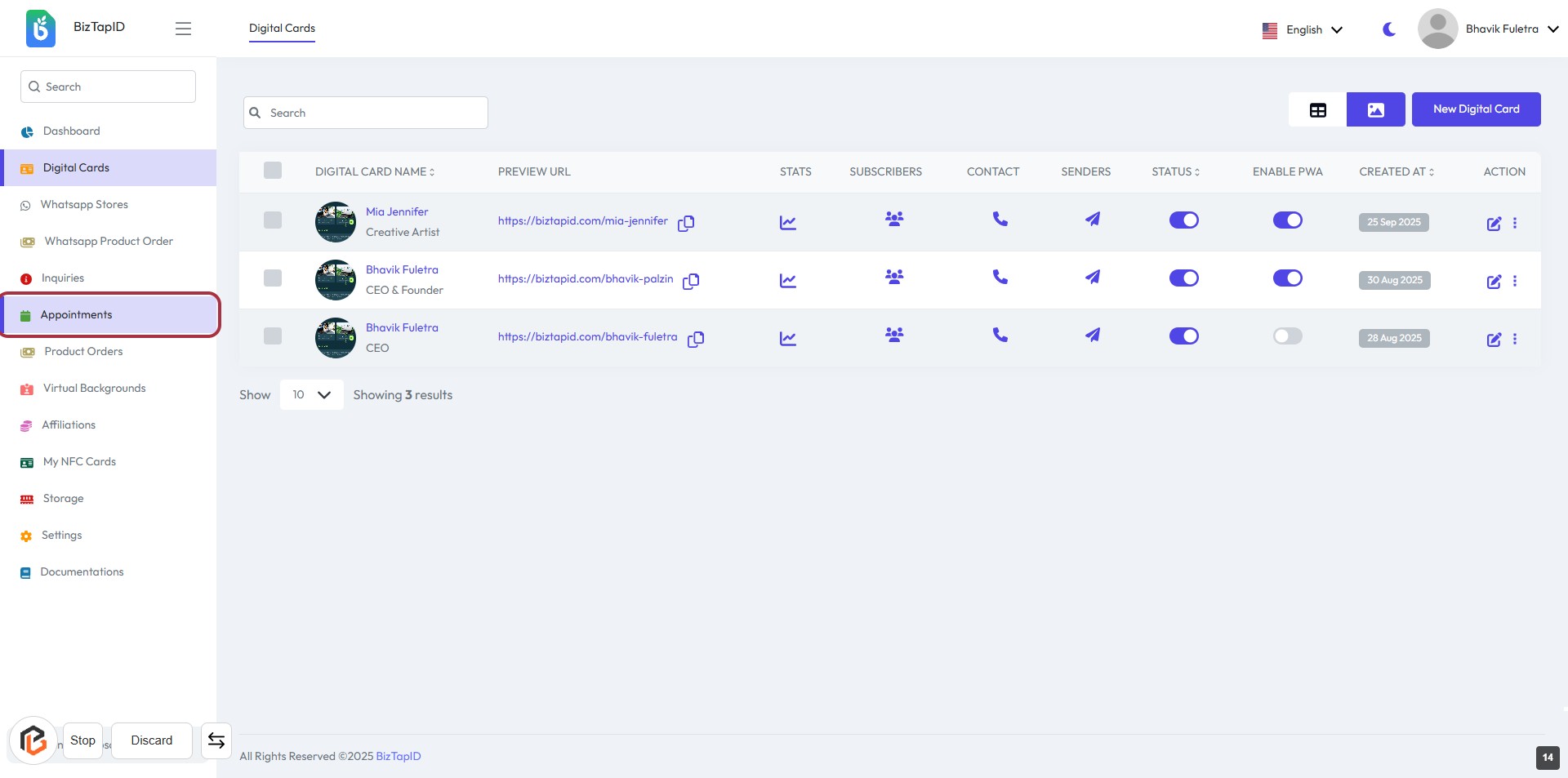
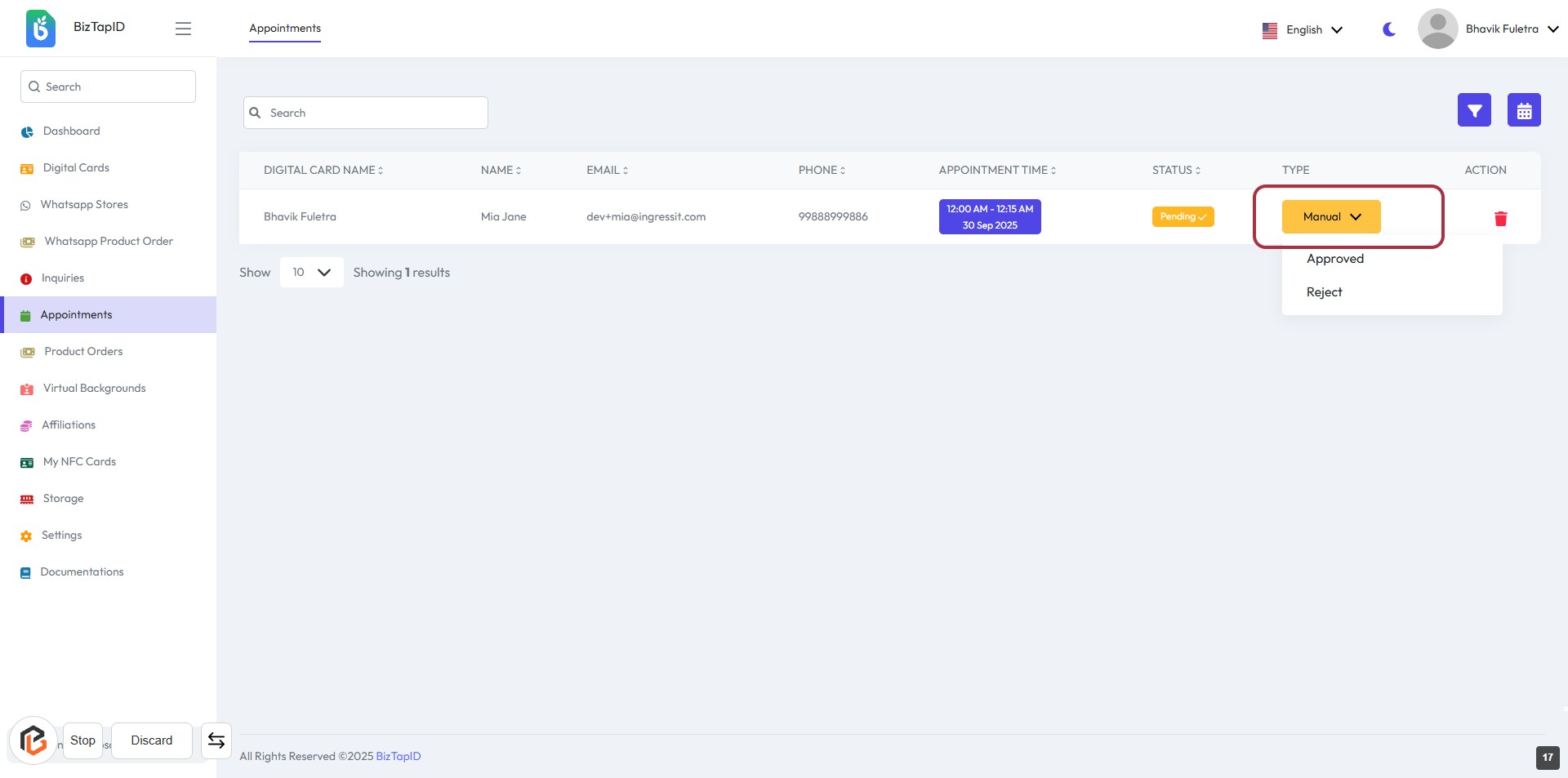
STEP 13: Click on "Appointments" to View Appointment Details
- Ensure you are connected to the internet to access the appointments.
- The appointments table includes the following columns:
- DIGITAL CARD NAME
- NAME
- PHONE
- APPOINTMENT TIME
- STATUS
- TYPE
- ACTION
- Use the search bar to filter results if needed.
- Click on "Appointment Type" for further actions.
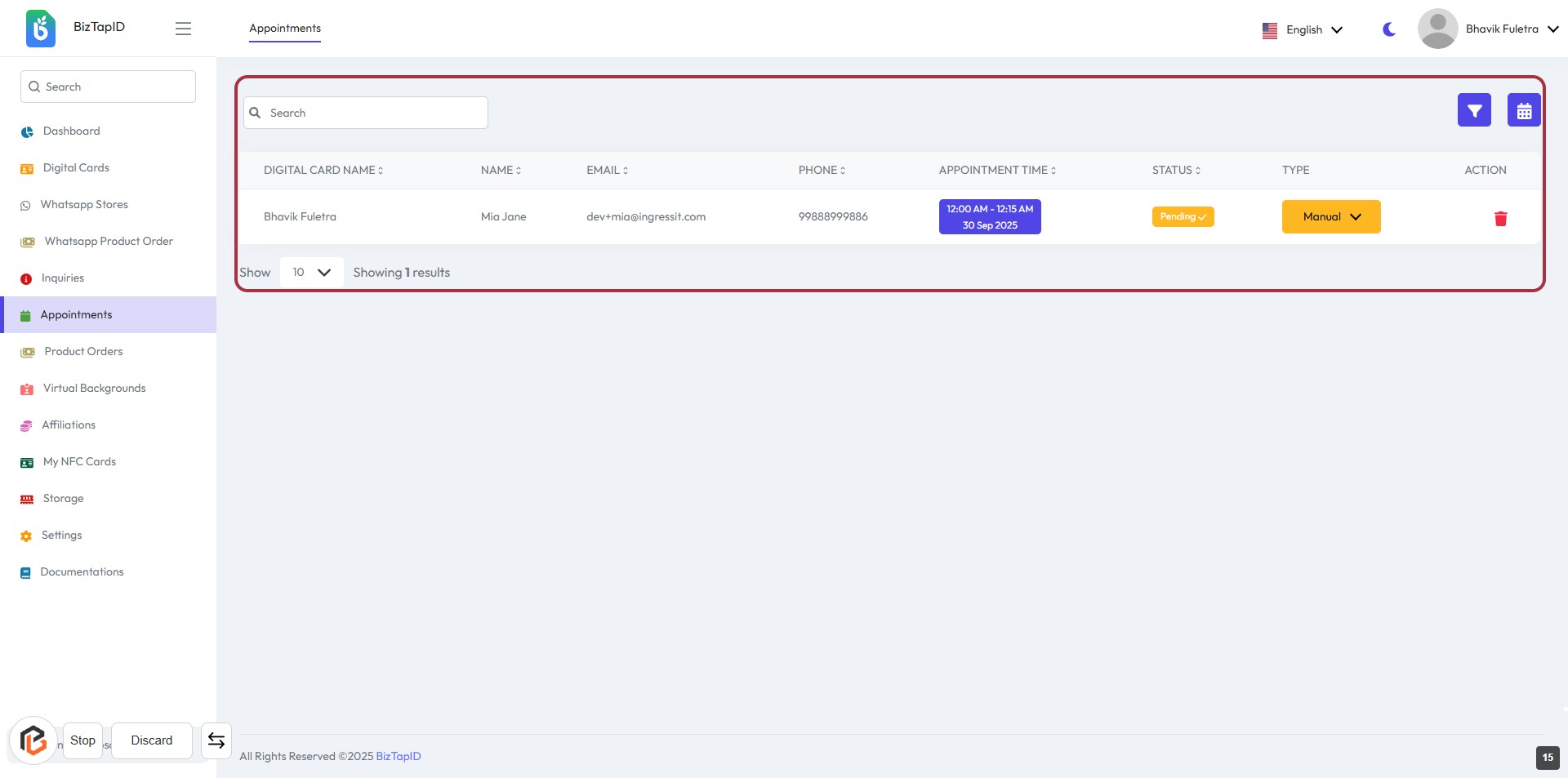
STEP 14: Click on "Appointment Type" to Select Appointment Type
- Click on the "Appointment Type" dropdown in the highlighted area.
- Select the desired type from the options: "Approved" or "Reject."
- Ensure to review your selection before proceeding.
- This action is crucial for managing appointment statuses effectively.